
Practice 3 - Movie List Manager
Introduction
This practice brings together everything we have learned so far — objects, array methods, DOM manipulation, and event handling — into a single, cohesive project: a Movie List Manager.
By the end of this session you will be able to:
- Use array methods on arrays of objects —
map(),reduce(),filter() - Render data dynamically — convert a JavaScript array into HTML with
innerHTML - Handle the
inputevent for live, keystroke-by-keystroke search - Understand event bubbling — why a click travels up the DOM tree
- Apply event delegation — one listener on the parent instead of one per child
- Capture and validate form input — read values, check them, build a new object
The Data
We start with a hard-coded array of movie objects. Each object has four properties:
const movies = [
  { title: "Inception",       genre: "Sci-Fi",   rating: 8.8, watched: true  },
  { title: "The Dark Knight", genre: "Action",   rating: 9.0, watched: true  },
  { title: "Interstellar",    genre: "Sci-Fi",   rating: 8.6, watched: false },
  { title: "Parasite",        genre: "Thriller", rating: 8.6, watched: true  },
  { title: "The Matrix",      genre: "Sci-Fi",   rating: 8.7, watched: false },
];
This is the shape of data you will receive from real APIs: an array of objects where every object has the same keys. Once you can work with this structure, you can work with most real-world data.
Project Structure
p3/
├── index.html   # HTML scaffold (given)
└── movies.js    # Everything we write
HTML scaffold
<!DOCTYPE html>
<html lang="en">
<head>
    <meta charset="UTF-8">
    <title>Movie List Manager</title>
    <style>
        .watched {
            color: gray;
            text-decoration: line-through;
        }
    </style>
</head>
<body>
    <h1>Movie List Manager</h1>

    <input type="text" id="search" placeholder="Search by title" />
    <ul id="movie-list"></ul>

    <hr>
    <h2>Add a new movie</h2>

    <input type="text"   id="new-title"  placeholder="Title" />
    <input type="text"   id="new-genre"  placeholder="Genre" />
    <input type="number" id="new-rating" min="0" max="10" step="0.1" placeholder="Rating" />
    <button id="add-btn">Add Movie</button>

    <script src="./movies.js"></script>
</body>
</html>
The .watched CSS class handles all the visual styling — JavaScript only adds or removes the class, never touches style directly.
Step 1 — Array Methods Warm-up
Before touching the DOM, we warm up with array methods on our movies data. Open the browser console (F12) to see the output.
a) Extract all titles with .map()
let titles = movies.map((movie) => movie.title);
console.log(titles);
// ["Inception", "The Dark Knight", "Interstellar", "Parasite", "The Matrix"]
b) Calculate the average rating with .reduce()
let sumOfRatings = movies.reduce((acc, movie) => acc + movie.rating, 0);
let avgOfRatings = sumOfRatings / movies.length;
console.log("Avg: " + avgOfRatings);
reduce() collapses the whole array into a single value. The callback receives the running accumulator acc and the current movie; we return the updated accumulator each step.
c) Find unwatched movies with .filter()
let notWatched = movies.filter((movie) => !movie.watched);
console.log(`You have not watched ${notWatched.length}, and these are: `, notWatched);
.filter() returns a new array containing only the elements for which the callback returns true. The original movies array is never changed.
Step 2 — Rendering the List
Now we move to the DOM. The core idea: JavaScript holds the real data, the DOM is just a view of it.
First, select the elements we need:
const ul          = document.querySelector("#movie-list");
const searchInput = document.querySelector("#search");
const addBtn      = document.querySelector("#add-btn");
Then write a renderMovies() function that takes an array and builds the list HTML:
function renderMovies(list) {
    ul.innerHTML = list
        .map(
            (movie) => `
                <li class="${movie.watched ? "watched" : ""}">
                    <strong>${movie.title}</strong> - ${movie.genre} - ${movie.rating}
                </li>
            `,
        )
        .join("");
}

renderMovies(movies);
What is happening here?
.map()converts each movie object into an<li>HTML string.join("")concatenates the array of strings into one big string (no separator between items)ul.innerHTML = ...replaces the<ul>’s entire content with that string
The ternary for the CSS class
class="${movie.watched ? "watched" : ""}"If the movie has been watched, we add the class "watched" — which CSS then renders as gray strikethrough. Otherwise the class is an empty string (no class). This pattern keeps all styling in CSS and all logic in JavaScript.
We call renderMovies(movies) once immediately at the bottom of the file, so the page shows the list as soon as it loads.
Step 3 — Live Search with the input Event
The "input" event fires on every keystroke as the user types — unlike "change" which only fires when the field loses focus.
searchInput.addEventListener("input", function () {
    const query = searchInput.value.toLowerCase();

    const filtered = movies.filter((movie) =>
        movie.title.toLowerCase().includes(query),
    );

    renderMovies(filtered);
});
Key points
- We convert both the search query and the movie title to lowercase so the search is case-insensitive (
"dark"matches"The Dark Knight") String.includes(substring)returnstrueif the substring appears anywhere in the string- We filter the original
moviesarray every time — we never modify it. The filtered result is only passed torenderMovies(); the source of truth stays intact
Step 4 — Event Bubbling
Before we add the click-to-toggle feature, it is important to understand event bubbling — a fundamental concept of how events propagate in the DOM.
When you click on an <li> inside the <ul>, the click event does not stop at the <li>. It bubbles up through every ancestor:
<li> → <ul> → <body> → <html> → document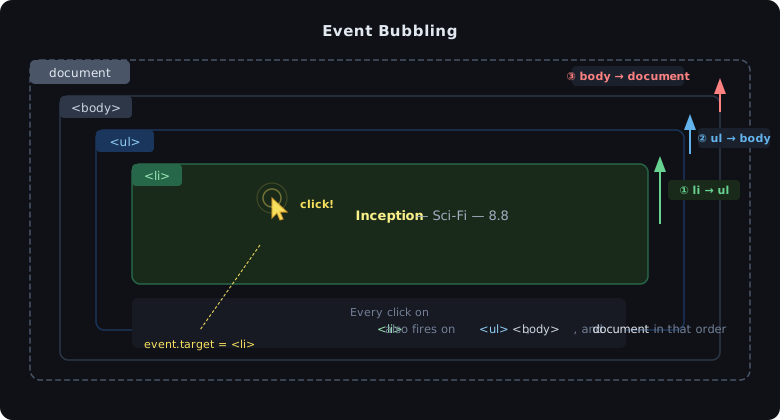
You can see this yourself — both of these listeners fire when you click a movie:
ul.addEventListener("click", function (event) {
    console.log("The <ul> heard the click!");
});

document.body.addEventListener("click", function (e) {
    console.log("Delegation from body");
});
Even though you clicked an <li>, the <ul> and <body> handlers both fire. This happens because the browser notifies every ancestor in order, from the clicked element all the way up to the document.
This behaviour — event bubbling — is what makes event delegation possible.
Step 5 — Event Delegation: Toggle “Watched”
We want a click on any <li> to toggle its "watched" class (and therefore the strikethrough style).
The naive approach — don’t do this:
// ❌ Individual listeners per <li>
const allLis = document.querySelectorAll("li");
allLis.forEach((li) => {
    li.addEventListener("click", function (e) { ... });
});
Two problems:
- With many items, this registers many separate event listeners — wasteful
- After
renderMovies()replacesinnerHTML, the new<li>elements have no listeners at all
The smart approach — event delegation:
// ✅ One listener on the parent <ul>
ul.addEventListener("click", function (event) {
    const clickedLi = event.target.closest("li");
    console.log(clickedLi);

    clickedLi.classList.toggle("watched");
});
Because clicks on an <li> bubble up to the <ul>, one listener on the <ul> catches every click. It does not matter when the <li> was created — new items added later work immediately with no extra setup.
event.target and .closest()
event.targetis the exact element the user clicked on. If there is a<strong>tag inside the<li>, clicking the bold text gives you the<strong>, not the<li>.closest("li")walks up the DOM fromevent.targetand returns the nearest ancestor (or self) that matches the CSS selector — guaranteeing we always get the<li>regardless of which child was clicked
classList.toggle()
classList.toggle("watched") adds the class if it is missing, removes it if it is present — a one-liner replacement for an if/else add/remove block.
Step 6 — Adding a New Movie
The add-movie form reads from three inputs, validates them, creates a new movie object, and re-renders.
addBtn.addEventListener("click", function () {
    let newTitle  = document.querySelector("#new-title").value;
    let newGenre  = document.querySelector("#new-genre").value;
    let rating    = document.querySelector("#new-rating").value;

    // Validate: all fields must be filled in and rating must be 0–10
    if (!newTitle || !newGenre || !rating || rating < 0 || rating > 10) {
        return;
    }

    const newMovie = {
        title:   newTitle,
        genre:   newGenre,
        watched: false,
        rating,           // shorthand for rating: rating
    };

    movies.push(newMovie);
    renderMovies(movies);
});
Object shorthand property
When a property name and the variable holding its value share the same name, you can write it once:
// Verbose:
const newMovie = { rating: rating };

// Shorthand (same result):
const newMovie = { rating };
Validation with early return
if (!newTitle || !newGenre || !rating || rating < 0 || rating > 10) {
    return; // stop — do not add the movie
}
An empty string is falsy in JavaScript, so !newTitle is true when the field is empty. The return statement exits the function early, preventing an invalid movie from being added.
Why delegation makes this free
After movies.push(newMovie) and renderMovies(movies), the new <li> appears in the list. Because our click listener is on the <ul> (not on individual <li> elements), the new item is immediately clickable to toggle watched status — no extra code needed.
Summary
| Concept | What we used |
|---|---|
| Array methods on objects | map(), reduce(), filter() |
| Dynamic rendering | innerHTML + template literals + .join("") |
| Live search | "input" event + String.includes() |
| Event bubbling | click travels <li> → <ul> → <body> |
| Event delegation | one listener on <ul>, event.target.closest("li") |
| Toggle a class | classList.toggle("className") |
| Object shorthand | { rating } instead of { rating: rating } |
| Validation + early return | if (!field) return; |
The rendering pattern
This is the most important pattern from this session:
JS array (source of truth)
     ↓  renderMovies()
  DOM <ul> (just a view)
Never read data back out of the DOM. Keep the real state in a JavaScript variable, and rebuild the DOM from it whenever something changes. This makes search, filtering, and adding trivially composable — you just call renderMovies() with whatever array you want to display.
Practice Exercises
Exercise 1: Count unwatched in the UI
Add a <p id="stats"> to the HTML. After every call to renderMovies(), update its text to show how many movies in the original movies array have watched: false.
Hints:
- Select
#statswithquerySelector - Use
.filter()onmovies(not onlist) to count unwatched entries - Update
stats.innerTextinsiderenderMovies()
Exercise 2: Filter by genre
Add a <select id="genre-filter"> with options: All, Sci-Fi, Action, Thriller. When the selection changes, re-render showing only movies of that genre (or all movies if "All" is selected).
Hints:
- Use the
"change"event on the<select> - Read the selected value with
genreSelect.value - If
value === "All", callrenderMovies(movies); otherwise filter first
Exercise 3: Sort by rating
Add a <button id="sort-btn">Sort by rating</button>. When clicked, re-render the list sorted from highest to lowest rating.
Hints:
Array.sort()mutates the original array — consider sorting a copy:[...movies].sort(...)- The comparator for descending order:
(a, b) => b.rating - a.rating