A platformer with an AI agent
Canvas, the game loop, and directing an agent
What we’re building
<canvas width="960" height="540"></canvas>html, body { margin: 0; height: 100%; background: #dff6f5; }
canvas { display: block; height: 100vh; max-width: 100%; margin: 0 auto; }const canvas = document.querySelector("canvas");
const ctx = canvas.getContext("2d");
// Sizes
const SCALE = 3;
const TILE = 18 * SCALE; // 54 px on screen
const FRAME = 24 * SCALE; // 72 px on screen, characters and backgrounds
// Player
const PLAYER_W = 36;
const PLAYER_H = 48;
const MOVE_SPEED = 0.3; // px/ms
const JUMP_SPEED = 0.7; // px/ms
const GRAVITY = 0.0018; // px/ms^2
const MAX_FALL_SPEED = 0.9; // px/ms
const STOMP_BOUNCE = 0.5; // px/ms
// Enemy
const ENEMY_W = 42;
const ENEMY_H = 36;
const ENEMY_SPEED = 0.08; // px/ms
// Coin hitbox inside its tile
const COIN_INSET = 9;
const COIN_SIZE = 36;
// Animation
const WALK_FRAME_MS = 150;
const COIN_FRAME_MS = 200;
// Background
const PARALLAX = 0.3;
const HORIZON_Y = 3 * FRAME;
// Sprite sheets, see assets/ASSETS.md
const SHEETS = {
tiles: { src: "/slides/canvas-platformer/tilemap_packed.png", size: 18, cols: 20 },
characters: { src: "/slides/canvas-platformer/tilemap-characters_packed.png", size: 24, cols: 9 },
backgrounds: { src: "/slides/canvas-platformer/tilemap-backgrounds_packed.png", size: 24, cols: 8 }
};
// Frame indices, see assets/ASSETS.md
const GRASS = 21;
const DIRT = 121;
const PLATFORM = 1;
const COIN_FRAMES = [151, 152];
const PLAYER_FRAMES = [0, 1];
const ENEMY_FRAMES = [18, 19];
const SKY = 0;
const CLOUDS = [8, 9, 10, 11];
const LOWER_SKY = 16;
// '#' ground, '.' empty, 'P' player start, 'c' coin, 'e' enemy
const level = [
"......................................................",
"......................................................",
"......................................................",
".............................cc.......................",
"............................####......................",
".......c..............e...............................",
"......###.......c...######.....................####...",
"..P.......#e.................##.........cc....e....cc.",
"################...###############...#################",
"################...###############...#################"
];
const LEVEL_W = level[0].length * TILE;
const LEVEL_H = level.length * TILE;
const images = {};
const keys = {};
const state = {
player: null,
coins: [],
enemies: [],
camera: { x: 0 },
score: 0,
time: 0
};
// Remember which keys are held down; update() reads this every frame
window.addEventListener("keydown", (event) => {
keys[event.code] = true;
if (["ArrowLeft", "ArrowRight", "ArrowUp", "Space"].includes(event.code)) {
event.preventDefault(); // stop the page from scrolling
}
});
window.addEventListener("keyup", (event) => {
keys[event.code] = false;
});
// Builds the player, coins and enemies from the level strings
function resetLevel() {
state.coins = [];
state.enemies = [];
state.score = 0;
for (let row = 0; row < level.length; row++) {
for (let col = 0; col < level[row].length; col++) {
const char = level[row][col];
const x = col * TILE;
const y = row * TILE;
if (char === "P") {
state.player = {
x: x,
y: y + TILE - PLAYER_H,
w: PLAYER_W,
h: PLAYER_H,
vx: 0,
vy: 0,
onGround: false,
facingRight: true,
walkTime: 0
};
} else if (char === "c") {
state.coins.push({ x: x + COIN_INSET, y: y + COIN_INSET, w: COIN_SIZE, h: COIN_SIZE });
} else if (char === "e") {
state.enemies.push({
x: x + (TILE - ENEMY_W) / 2,
y: y + TILE - ENEMY_H,
w: ENEMY_W,
h: ENEMY_H,
vx: ENEMY_SPEED,
walkTime: 0
});
}
}
}
}
// True if the tile at (col, row) is ground
function isSolid(col, row) {
const line = level[row];
if (line === undefined) return false;
return line[col] === "#";
}
// Last tile a right or bottom edge reaches into; an edge on a tile border stays in the tile before it
function lastTile(edge) {
return Math.ceil(edge / TILE) - 1;
}
// True if the rectangle overlaps any ground tile
function hitsSolid(x, y, w, h) {
const firstCol = Math.floor(x / TILE);
const lastCol = lastTile(x + w);
const firstRow = Math.floor(y / TILE);
const lastRow = lastTile(y + h);
for (let row = firstRow; row <= lastRow; row++) {
for (let col = firstCol; col <= lastCol; col++) {
if (isSolid(col, row)) return true;
}
}
return false;
}
// True if two rectangles overlap (AABB test)
function overlaps(a, b) {
return a.x < b.x + b.w && a.x + a.w > b.x &&
a.y < b.y + b.h && a.y + a.h > b.y;
}
// Turns held keys into velocity and starts a jump
function handleInput() {
const player = state.player;
player.vx = 0;
if (keys.ArrowLeft) player.vx -= MOVE_SPEED;
if (keys.ArrowRight) player.vx += MOVE_SPEED;
if (player.vx > 0) player.facingRight = true;
if (player.vx < 0) player.facingRight = false;
const jumpPressed = keys.ArrowUp || keys.Space;
if (jumpPressed && player.onGround) {
player.vy = -JUMP_SPEED;
player.onGround = false;
}
}
// Moves the player sideways and pushes it out of walls
function moveX(player, dt) {
player.x += player.vx * dt;
player.x = Math.max(0, Math.min(player.x, LEVEL_W - player.w));
if (!hitsSolid(player.x, player.y, player.w, player.h)) return;
if (player.vx > 0) {
const col = lastTile(player.x + player.w);
player.x = col * TILE - player.w;
} else if (player.vx < 0) {
const col = Math.floor(player.x / TILE);
player.x = (col + 1) * TILE;
}
player.vx = 0;
}
// Applies gravity, moves the player vertically and lands it on the ground
function moveY(player, dt) {
player.vy = Math.min(player.vy + GRAVITY * dt, MAX_FALL_SPEED);
player.y += player.vy * dt;
player.onGround = false;
if (!hitsSolid(player.x, player.y, player.w, player.h)) return;
if (player.vy > 0) {
const row = lastTile(player.y + player.h);
player.y = row * TILE - player.h;
player.onGround = true;
} else if (player.vy < 0) {
const row = Math.floor(player.y / TILE);
player.y = (row + 1) * TILE; // bumped its head
}
player.vy = 0;
}
// Picks up every coin the player touches
function collectCoins() {
for (const coin of state.coins) {
if (overlaps(state.player, coin)) {
coin.collected = true;
state.score += 1;
}
}
state.coins = state.coins.filter((coin) => !coin.collected);
}
// Walks an enemy and turns it around at walls and ledges
function moveEnemy(enemy, dt) {
const nextX = enemy.x + enemy.vx * dt;
const frontX = enemy.vx > 0 ? nextX + enemy.w : nextX;
const col = Math.floor(frontX / TILE);
const bodyRow = lastTile(enemy.y + enemy.h);
const floorRow = bodyRow + 1;
if (isSolid(col, bodyRow) || !isSolid(col, floorRow)) {
enemy.vx = -enemy.vx;
} else {
enemy.x = nextX;
}
enemy.walkTime += dt;
}
// Stomping an enemy removes it; touching it from the side restarts the level
function checkEnemyHits() {
const player = state.player;
for (const enemy of state.enemies) {
if (!overlaps(player, enemy)) continue;
const feetAboveMiddle = player.y + player.h < enemy.y + enemy.h / 2;
if (player.vy > 0 && feetAboveMiddle) {
enemy.stomped = true;
player.vy = -STOMP_BOUNCE;
} else {
resetLevel();
return;
}
}
state.enemies = state.enemies.filter((enemy) => !enemy.stomped);
}
// Centers the camera on the player without showing past the level edges
function updateCamera() {
const target = state.player.x + state.player.w / 2 - canvas.width / 2;
state.camera.x = Math.max(0, Math.min(target, LEVEL_W - canvas.width));
}
// Game logic for one frame; dt is the time since the last frame in ms
function update(dt) {
if (dt > 100) return; // tab was hidden; skip the jump
state.time += dt;
const player = state.player;
handleInput();
moveX(player, dt);
moveY(player, dt);
if (player.vx !== 0 && player.onGround) {
player.walkTime += dt;
} else {
player.walkTime = 0;
}
if (player.y > LEVEL_H) {
resetLevel(); // fell into a pit
return;
}
collectCoins();
for (const enemy of state.enemies) {
moveEnemy(enemy, dt);
}
checkEnemyHits();
updateCamera();
}
// Draws frame `index` of a sheet at (x, y), scaled up SCALE times
function drawFrame(sheetName, index, x, y) {
const sheet = SHEETS[sheetName];
const sx = (index % sheet.cols) * sheet.size;
const sy = Math.floor(index / sheet.cols) * sheet.size;
const size = sheet.size * SCALE;
ctx.drawImage(images[sheetName], sx, sy, sheet.size, sheet.size, x, y, size, size);
}
// Draws a character frame; the sheet faces left, so mirror it to face right
function drawCharacter(index, x, y, facingRight) {
ctx.save();
ctx.translate(Math.round(x), Math.round(y));
if (facingRight) {
ctx.translate(FRAME, 0);
ctx.scale(-1, 1);
}
drawFrame("characters", index, 0, 0);
ctx.restore();
}
// Picks the frame of an animation that loops every frameMs milliseconds
function animationFrame(frames, time, frameMs) {
return frames[Math.floor(time / frameMs) % frames.length];
}
// Chooses a ground sprite by looking at the neighbouring tiles
function groundTile(col, row) {
const isTop = !isSolid(col, row - 1);
const isFloating = isTop && !isSolid(col, row + 1);
const leftEnd = !isSolid(col - 1, row);
const rightEnd = !isSolid(col + 1, row);
// Each group in the sheet is ordered: single, left end, middle, right end
let first = DIRT;
if (isFloating) first = PLATFORM;
else if (isTop) first = GRASS;
if (leftEnd && rightEnd) return first - 1;
if (leftEnd) return first;
if (rightEnd) return first + 2;
return first + 1;
}
// Sky and clouds, scrolling slower than the level so they look far away
function drawBackground() {
const scroll = state.camera.x * PARALLAX;
const firstTile = Math.floor(scroll / FRAME);
const offset = scroll % FRAME;
const tilesAcross = Math.ceil(canvas.width / FRAME) + 1;
for (let i = 0; i < tilesAcross; i++) {
const x = Math.round(i * FRAME - offset);
const cloud = CLOUDS[(firstTile + i) % CLOUDS.length];
for (let y = 0; y < HORIZON_Y; y += FRAME) {
drawFrame("backgrounds", SKY, x, y);
}
drawFrame("backgrounds", cloud, x, HORIZON_Y);
for (let y = HORIZON_Y + FRAME; y < canvas.height; y += FRAME) {
drawFrame("backgrounds", LOWER_SKY, x, y);
}
}
}
// Draws only the ground tiles that are currently on screen
function drawLevel() {
const firstCol = Math.floor(state.camera.x / TILE);
const lastCol = Math.floor((state.camera.x + canvas.width) / TILE);
for (let row = 0; row < level.length; row++) {
for (let col = firstCol; col <= lastCol; col++) {
if (isSolid(col, row)) {
drawFrame("tiles", groundTile(col, row), col * TILE, row * TILE);
}
}
}
}
// Draws the coins with a two-frame spin
function drawCoins() {
const frame = animationFrame(COIN_FRAMES, state.time, COIN_FRAME_MS);
for (const coin of state.coins) {
drawFrame("tiles", frame, coin.x - COIN_INSET, coin.y - COIN_INSET);
}
}
// Draws each enemy so its sprite stands on its hitbox
function drawEnemies() {
for (const enemy of state.enemies) {
const frame = animationFrame(ENEMY_FRAMES, enemy.walkTime, WALK_FRAME_MS);
const x = enemy.x - (FRAME - enemy.w) / 2;
const y = enemy.y - (FRAME - enemy.h);
drawCharacter(frame, x, y, enemy.vx > 0);
}
}
// Draws the player: idle, walking, or the second frame while in the air
function drawPlayer() {
const player = state.player;
let frame = PLAYER_FRAMES[1];
if (player.onGround) {
frame = animationFrame(PLAYER_FRAMES, player.walkTime, WALK_FRAME_MS);
}
const x = player.x - (FRAME - player.w) / 2; // x - 18
const y = player.y - (FRAME - player.h); // y - 24
drawCharacter(frame, x, y, player.facingRight);
}
// Draws the score in screen coordinates, so the camera does not move it
function drawScore() {
ctx.fillStyle = "#1e293b";
ctx.font = "bold 24px sans-serif";
ctx.fillText(`Score: ${state.score}`, 20, 36);
}
// Draws one frame: background, then the world through the camera, then the score
function draw() {
ctx.clearRect(0, 0, canvas.width, canvas.height);
drawBackground();
ctx.save();
ctx.translate(-Math.round(state.camera.x), 0);
drawLevel();
drawCoins();
drawEnemies();
drawPlayer();
ctx.restore();
drawScore();
}
let last = performance.now();
// Runs once per display refresh: update the state, then draw it
function gameLoop() {
const now = performance.now();
const dt = now - last;
last = now;
update(dt);
draw();
requestAnimationFrame(gameLoop);
}
// Resolves with the image once the browser has loaded it
function loadImage(src) {
return new Promise((resolve, reject) => {
const image = new Image();
image.onload = () => resolve(image);
image.onerror = () => reject(new Error(`Could not load ${src}`));
image.src = src;
});
}
// Loads every sheet first; drawing before that would draw nothing
async function start() {
for (const name of Object.keys(SHEETS)) {
images[name] = await loadImage(SHEETS[name].src);
}
ctx.imageSmoothingEnabled = false;
resetLevel();
last = performance.now();
requestAnimationFrame(gameLoop);
}
start();Press Run to see the result
How often does it redraw?
How often does the game redraw the whole screen?
Today
- By hand: a box that moves
- Player and jump
- Level and collision
- Sprites and animation
- Camera
- Your vote: two features
- Playtest and bug hunt
What you need
- Git: save each working stage, undo a bad one
git-scm.com/downloads - Node.js (LTS): agents run JavaScript tools and checks with it
nodejs.org/en/download - Python 3: agents use it for quick scripts, like reading files and checking output
python.org/downloads - Live Server: the editor extension that serves the game, as in earlier practices
- Antigravity: the agent. Free for students, sign in with Google
antigravity.google/download
Check your setup
git --version
node --version
python --version        # on Windows also try: py --version
Open index.html with Live Server (Go Live in the status bar). You and the agent’s browser see the same page at the same address.
Canvas
Pixels, not elements
DOM
<div class="box">stays an element- You can find it, restyle it, listen to it
- The browser redraws it for you
Canvas
fillRectpaints pixels, then forgets- There is no box to find or click
- To move it: clear, then paint again
Coordinates
First drawing
<canvas width="480" height="270"></canvas>canvas { border: 1px solid #ccc; }const canvas = document.querySelector("canvas");
const ctx = canvas.getContext("2d");
// x, y, width, height
ctx.fillStyle = "tomato";
ctx.fillRect(40, 60, 120, 80);
// centre x, centre y, radius, full turn
ctx.fillStyle = "steelblue";
ctx.beginPath();
ctx.arc(300, 100, 50, 0, Math.PI * 2);
ctx.fill();
ctx.fillStyle = "black";
ctx.font = "24px sans-serif";
ctx.fillText("Hello, canvas", 40, 220);Press Run to see the result
Predict
Every frame we move the box 2 px to the right and paint it again, but we never clear the canvas. What do we see?
requestAnimationFrame
function gameLoop() {
  update();
  draw();
  requestAnimationFrame(gameLoop); // call me again before the next repaint
}

requestAnimationFrame(gameLoop);- Runs once per screen refresh: 60 times a second on a 60 Hz screen, 120 on a 120 Hz one
- Pauses while the tab is hidden
- Never
while (true): the page would freeze, because the browser never gets to repaint
Predict
Each frame runs box.x += 2. On a 120 Hz monitor, compared with 60 Hz, the box moves…
Delta time
const now = performance.now();
const dt = now - last;          // ms since the previous frame
last = now;

box.x += box.vx * dt;           // vx in px/ms: 0.3 px/ms = 300 px/s
60 Hz: dt ≈ 16.7 ms. 120 Hz: dt ≈ 8.3 ms. Both move the box 300 px per second.
if (dt > 100) return; After a hidden tab, dt can be several seconds. Skip that frame, or the player teleports through the floor.
Per frame vs per millisecond
<label><input type="checkbox" id="slow"> Slow frames (every 3rd frame only)</label>
<button id="reset">Line up</button>
<canvas width="640" height="180"></canvas>
body { font: 16px sans-serif; margin: 12px; }
canvas { display: block; margin-top: 10px; border: 1px solid #ccc; }const canvas = document.querySelector("canvas");
const ctx = canvas.getContext("2d");
const slow = document.querySelector("#slow");
const state = {
perFrame: { x: 0 },
withDt: { x: 0 }
};
// Same speed at 60 fps: 2 px per frame = 0.12 px per ms
function update(dt) {
state.perFrame.x = (state.perFrame.x + 2) % canvas.width;
state.withDt.x = (state.withDt.x + 0.12 * dt) % canvas.width;
}
// Paint both boxes and their labels
function draw() {
ctx.clearRect(0, 0, canvas.width, canvas.height);
ctx.font = "15px monospace";
ctx.fillStyle = "#444";
ctx.fillText("x += 2", 8, 20);
ctx.fillText("x += 0.12 * dt", 8, 105);
ctx.fillStyle = "tomato";
ctx.fillRect(state.perFrame.x, 30, 40, 40);
ctx.fillStyle = "steelblue";
ctx.fillRect(state.withDt.x, 115, 40, 40);
}
document.querySelector("#reset").addEventListener("click", () => {
state.perFrame.x = 0;
state.withDt.x = 0;
});
let last = performance.now();
let frame = 0;
// With "slow frames" on, update and draw run on every 3rd frame only
function gameLoop() {
frame++;
if (!slow.checked || frame % 3 === 0) {
const now = performance.now();
update(now - last);
last = now;
draw();
}
requestAnimationFrame(gameLoop);
}
requestAnimationFrame(gameLoop);Press Run to see the result
The game loop
The game loop
One lap is one frame: about 16.7 ms at 60 Hz.
In our code
function update(dt) {   // input, physics, collisions
  // changes state.player, state.camera, ...
}

function draw() {       // clear, then paint the state
  // reads state, never changes it
}

function gameLoop() {
  const now = performance.now();
  update(now - last);
  last = now;
  draw();
  requestAnimationFrame(gameLoop);
}
Stage 0 · By hand, no agent
- Draw one box with
fillRect - Add
gameLoop()withrequestAnimationFrame; move the box byvx * dt - Run it without
clearRect, then addclearRectat the top ofdraw() - Commit:
stage 0: game loop
Works when: the box crosses the screen, wraps around, leaves no smear, and moves at the same speed on any monitor.
Where does it go?
The camera follows the player. Which function changes camera.x?
Working with an AI agent
What a language model does
- It continues text: given everything so far, it predicts the next small piece, then the next
- It learned from a huge amount of code and writing, so common patterns come out well
- It cannot run your code by itself. An agent can, through tools
- It sounds just as sure when it is wrong
Same prompt, different code
- Each piece is picked with some randomness, so one prompt can produce many different programs
- Your game will not match mine line by line, or your neighbour’s
- Judge it by what it does: does the player land, stop at walls, pick up coins?
- If a name or structure matters to you, say so in the prompt or the rules file
Predict
Two of you send the exact same prompt to the same model, in the same project. The code you get back is…
It only knows its context
- Context: your prompt, the files it opened, the rules file, the conversation so far
- Whatever is missing gets guessed: “a platformer” may become Phaser, “the coin sprite” may get the wrong coordinates
- That is why the project has
AGENTS.mdandassets/ASSETS.md - Context has a size limit, and long conversations drift: start a new conversation for each stage
Chat vs agent
- Chat: you paste code in, copy answers out, and run everything yourself
- Agent: works inside your project folder. It reads files, edits them, runs commands and opens the page
- You: decide what to build, approve the plan and the commands, read the diff
An agent is a loop too
It goes round until the task is done or it gets stuck.
Antigravity, the parts we use
- Planning mode: it writes a plan first and edits after (Fast mode skips the plan)
- Implementation plan: what it intends to change; comment on any line before it starts
- Walkthrough: what it changed and how it checked, with screenshots
- Permissions: terminal commands wait for your approval
- Browser: it can open and play the game; allowed on Live Server’s
127.0.0.1only
AGENTS.md: rules it reads every time
## Stack
- Vanilla JavaScript, HTML and CSS only. No libraries, frameworks or game
  engines (no Phaser, PixiJS, Kaboom), no npm, no bundler, no TypeScript.

## Code style
- Keep all game data in one `state` object.
- Logic goes in update(dt), rendering in draw(). The loop is gameLoop().

## Working style
- Make the smallest change that does what was asked.
Changed the file? Start a new conversation so it is read again.
A prompt that works
Vague
add enemies
The agent has to guess how many, where, how they move, what touching one does, and which sprite.
Specific
“Add a patrolling enemy as ‘e’ in the level strings. It walks back and forth and turns around at walls and at platform edges. Touching it from the side restarts the level; landing on its head removes it and bounces the player up.”
It says where, how it moves, and what touching it does.
Every stage, the same steps
- Predict: what should happen when it works?
- Prompt: say what, where, and what not to touch
- Read the plan before approving it
- Run the game
- Read the diff: find the two or three lines that matter
- Commit
Git is the undo button
git add -A
git commit -m "stage 2: level and collision"

git diff          # what changed since the last commit
git restore . # throw away every uncommitted change- Commit every time the game works
- Two fix attempts failed? Restore, then ask again more precisely
Bug reports that get fixed
What I did, what I expected, what happened.
“When I hold right against a wall in mid-air, the player sticks to it instead of sliding down. Explain why, then fix it.”
- “Collision is broken” makes it guess which collision and how
- “Explain why, then fix it” makes it find the cause before it changes code
Stay in charge
- Read a terminal command before you approve it
- Never paste passwords, tokens or API keys into a prompt
- No new packages or downloads: everything we need is in the project
- Read the diff before you commit; you are the one who hands it in
- If it rewrites the whole file for a small change, reject and ask again
Build it, stage by stage
Stage 1 · Keys
<pre id="out">Held: nothing</pre>pre { font-size: 20px; margin: 16px; }const keys = {};
const out = document.querySelector("#out");
window.addEventListener("keydown", (event) => {
keys[event.code] = true;
});
window.addEventListener("keyup", (event) => {
keys[event.code] = false;
});
// Every frame, like update(dt): read the keys
function show() {
const held = Object.keys(keys)
.filter((code) => keys[code]);
out.textContent = "Held: " + held.join(", ");
requestAnimationFrame(show);
}
show();Press Run to see the result
Stage 1 · Tell the agent
Replace the moving box with a player: a 36x48 rectangle standing on
a flat floor at the bottom of the canvas. Left/right arrow keys move
it, Space or Up jumps, and gravity pulls it back down. Track pressed
keys in a `keys` object updated by keydown/keyup listeners, and read
that object inside update(dt). Only allow jumping while the player is
on the ground. Use dt for all movement.
Works when: arrows move it smoothly, Space jumps only from the ground, and the page does not scroll.
Stage 2 · The level is a grid
const level = [
  "..........",
  "...###....",
  ".P......c.",
  "##########"
];
const TILE = 54;                      // an 18 px tile drawn 3 times bigger

level[row][col];                      // "#" ground, "." empty
const col = Math.floor(x / TILE); // pixel position to tile index- The same idea as
pixels[row][col]in the Pixel Art Editor - Move along x and fix x, then move along y and fix y. Do both at once and a corner can’t tell a wall from a floor
Stage 2 · Do two boxes overlap?
<canvas width="420" height="260"></canvas>canvas { border: 1px solid #ccc; }const canvas = document.querySelector("canvas");
const ctx = canvas.getContext("2d");
const wall = { x: 180, y: 70, w: 120, h: 120 };
const box = { x: 40, y: 100, w: 60, h: 60 };
// Overlap on x AND overlap on y
function overlaps(a, b) {
return a.x < b.x + b.w &&
a.x + a.w > b.x &&
a.y < b.y + b.h &&
a.y + a.h > b.y;
}
function draw() {
ctx.clearRect(0, 0, 420, 260);
ctx.fillStyle = "#94a3b8";
ctx.fillRect(wall.x, wall.y, wall.w, wall.h);
ctx.fillStyle = overlaps(box, wall) ? "crimson" : "seagreen";
ctx.fillRect(box.x, box.y, box.w, box.h);
}
canvas.addEventListener("mousemove", (event) => {
box.x = event.offsetX - box.w / 2;
box.y = event.offsetY - box.h / 2;
draw();
});
draw();Press Run to see the result
Stage 2 · Tell the agent
Add a level stored as an array of strings in a `level` constant, one
character per tile: '#' is solid ground, '.' is empty, 'P' is the
player's start. Tiles are 54x54 px on screen. Draw solid tiles as
brown rectangles for now. Make the player collide with solid tiles on
every side: resolve horizontal and vertical movement separately so
the player can land on platforms, bump its head, and stop at walls.
Paste the level we design together under the prompt. Still rectangles: sprites come next.
Works when: it lands on platforms, bumps its head, stops at walls, and does not stick to a wall in mid-air.
Stage 3 · Sprite sheets
Art: Pixel Platformer by Kenney, CC0: free to use for anything. We credit it anyway.
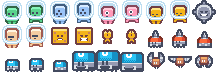
One image, 27 frames of 24×24 px. Frames 0 and 1: our player.
<canvas width="400" height="200"></canvas>body { margin: 0; background: #dff6f5; }
canvas { display: block; width: 100%; }const canvas = document.querySelector("canvas");
const ctx = canvas.getContext("2d");
const sheet = new Image();
const SIZE = 24; // one frame on the sheet
const SCALE = 4; // 96 px on screen
const FRAMES = [0, 1]; // green alien: idle, walk
const state = { x: 0, vx: 0.1, time: 0 };
// Walk back and forth across the canvas
function update(dt) {
state.time += dt;
state.x += state.vx * dt;
const maxX = canvas.width - SIZE * SCALE;
if (state.x < 0 || state.x > maxX) {
state.x = Math.max(0, Math.min(state.x, maxX));
state.vx = -state.vx;
}
}
// Cut the current frame out of the sheet; mirror it when walking right
function draw() {
const frame = FRAMES[Math.floor(state.time / 150) % FRAMES.length];
ctx.clearRect(0, 0, canvas.width, canvas.height);
ctx.imageSmoothingEnabled = false;
ctx.fillStyle = "#333";
ctx.font = "16px monospace";
ctx.fillText("frame " + frame, 10, 24);
ctx.save();
ctx.translate(Math.round(state.x), 70);
if (state.vx > 0) {
ctx.translate(SIZE * SCALE, 0);
ctx.scale(-1, 1);
}
ctx.drawImage(sheet, frame * SIZE, 0, SIZE, SIZE, 0, 0, SIZE * SCALE, SIZE * SCALE);
ctx.restore();
}
let last = performance.now();
function gameLoop() {
const now = performance.now();
update(Math.min(now - last, 100));
last = now;
draw();
requestAnimationFrame(gameLoop);
}
sheet.onload = () => requestAnimationFrame(gameLoop);
sheet.src = "/slides/canvas-platformer/tilemap-characters_packed.png";Press Run to see the result
Stage 3 · Tiles come from a sheet too
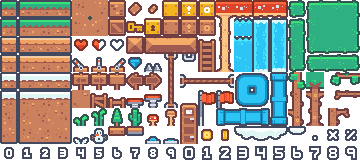
- 20 × 9 tiles of 18×18 px, numbered left to right, top to bottom
assets/ASSETS.mdlists the index of every tile we use: grass 21–23, dirt 121–123, coin 151- Agents guess sprite coordinates badly; this file removes the guessing
Stage 3 · drawImage with 9 arguments
ctx.drawImage(
  sheet,             // the whole sprite sheet
  sx, sy, 24, 24,    // source: which 24×24 frame to cut out
  x, y, 72, 72       // destination: where, and how big, on the canvas
);

const sx = (index % cols) * 24;             // index 1 on a 9-column sheet: sx = 24
const sy = Math.floor(index / cols) * 24; // sy = 0- The sprites face left. To face right:
save,translate,scale(-1, 1), draw,restore - Images load asynchronously: start the loop only after every sheet has loaded
Stage 3 · Why is it blurry?
<canvas width="360" height="200"></canvas>const canvas = document.querySelector("canvas");
const ctx = canvas.getContext("2d");
const sheet = new Image();
sheet.onload = () => {
ctx.font = "16px monospace";
ctx.imageSmoothingEnabled = true;
ctx.drawImage(sheet, 0, 0, 24, 24, 10, 30, 144, 144);
ctx.fillText("smoothing on", 10, 20);
ctx.imageSmoothingEnabled = false;
ctx.drawImage(sheet, 0, 0, 24, 24, 190, 30, 144, 144);
ctx.fillText("smoothing off", 190, 20);
};
sheet.src = "/slides/canvas-platformer/tilemap-characters_packed.png";Press Run to see the result
Stage 3 · Tell the agent
Replace the rectangles with sprites from assets/, using the file
names, frame size and tile indices listed in assets/ASSETS.md. Draw
tiles and the player with the 9-argument drawImage and a 3x scale.
Wait until every image has loaded before starting the game loop.
Animate the walk cycle while the player moves, timing frames with dt,
and flip the sprite horizontally when moving right.
Works when: the art is crisp, the player faces the way it walks, the walk cycle is not racing, and its feet touch the ground.
Stage 4 · Camera
ctx.translate(-camera.x, 0)shifts everything drawn after it- The player’s
xstays a world coordinate. The camera never moves the player, only the view
Predict
The score must stay in the top-left corner while the level scrolls. Where do we draw it?
Stage 4 · draw() with a camera
function draw() {
  ctx.clearRect(0, 0, canvas.width, canvas.height);
  drawBackground();                      // screen coordinates

  ctx.save();
  ctx.translate(-Math.round(state.camera.x), 0);
  drawLevel();                           // world coordinates
  drawCoins();
  drawPlayer();
  ctx.restore();

  drawScore();                           // screen coordinates again
}
Stage 4 · Tell the agent
Make the level about three screens wide and add a camera that follows
the player horizontally. Implement it with ctx.translate inside
save/restore in draw(), clamp it so it never shows past the level's
edges, and only draw tiles that are currently on screen.
Works when: walking right scrolls smoothly, the camera stops at both ends of the level, and collision still works everywhere.
Stage 5 · Your vote
Which feature should the agent add next? The top two win.
Stage 5 · Coins and a score
Add coins as 'c' characters in the level strings, drawn with the coin
sprite from assets/ASSETS.md. When the player overlaps a coin, remove
it and add 1 to state.score. Draw the score in the top-left corner
with fillText so it stays fixed on screen when the camera moves.
Works when: each coin counts once, and the score stays in the corner while the level scrolls.
Stage 5 · A patrolling enemy
Add a patrolling enemy as 'e' in the level strings, drawn with the
crawler frames from assets/ASSETS.md. It walks back and forth and
turns around at walls and at platform edges. Touching it from the
side restarts the level; landing on its head removes it and bounces
the player up.
Works when: it never walks off a platform, a stomp removes it, and a side hit restarts the level.
Stage 5 · Double jump
Let the player jump once more while in the air. The extra jump is
available again after landing. Keep reading input from the existing
keys object, and make one key press give at most one jump.
Works when: two jumps work in the air, a third does not, and holding Space does not jump twice.
Stage 5 · A moving platform
Add a moving platform as '=' in the level strings, drawn with the
one-tile-thick platform tiles from assets/ASSETS.md. It moves left
and right and turns around at walls. A player standing on it moves
with it.
Works when: the player rides it without sliding off or sinking in, and can still jump off it.
Stage 5 · Title and game-over screens
Add a title screen that waits for Enter, and a game-over screen when
the player falls into a pit, which waits for Enter to restart. Keep
the current screen in state.screen, and check it in update(dt) and
draw().
Works when: the game starts only after Enter, a fall shows game over, and Enter restarts a clean level.
Stage 6 · Playtest and bug hunt
- Play it on the board; call out anything that looks wrong
- Turn each callout into a bug report: what I did, what I expected, what happened
- One fix per prompt, then commit
Then let the agent play it:
Open http://127.0.0.1:5500, play through the level, and report
anything that looks wrong, with screenshots.
Who decided what?
The level, the features, the bug reports and the numbers were ours. The typing was the agent’s.
Everything we added today lives inside update and draw.