Objects, Array Methods & the DOM
ContentsHideShow
- Introduction
- Where we left off
- 1. Objects
- 2. Arrays of objects
- 3. filter on objects
- 4. find - one element instead of an array
- 5. some and every
- 6. Math.min, Math.max, and spreading
- 7. reduce - many values into one
- 8. Matrices and flat()
- 9. The DOM
- 10. Selecting elements
- 11. Reading and writing content
- 12. Changing styles and attributes
- Summary
- Extra: seven more array methods
- Tasks
- Next steps
Introduction
This practice had two halves, in two separate project folders.
In the first half we stayed in the Console and finished the array toolkit: objects, arrays of objects, and the methods that go with them (find, some, every, reduce, flat), plus Math.min / Math.max and the spread operator.
In the second half we finally stopped printing and started changing the page. That is the DOM, and it is the first time this semester that JavaScript does something a visitor can actually see.
What we cover:
- Objects: storing values by name instead of by position
- Arrays of objects, and why every method you already know still works
filterandfindon objectssomeandeveryMath.min/Math.maxand the spread operatorreduce- Matrices and
flat() - The DOM: what it is, and why the
<script>tag moved - Selecting elements:
querySelector,querySelectorAll - Reading and writing content:
innerText,innerHTML,textContent - Changing styles and attributes
Where we left off
Practice 1 gave us everything this article builds on. The short version:
const university = "ELTE";        // const by default, let when you reassign
let data = [1, 2, 3];             // arrays, .length, data[i]

for (const item of data) { }      // for...of when you do not need the index

const double = (x) => x * 2;      // functions are values

data.map((item) => item ** 2);    // [1, 4, 9]   - one in, one out
data.filter((item) => item % 2 === 0);  // [2]   - keep the ones that pass
If any line above is unclear, read Practice 1 first. Everything from here on assumes map, filter, arrow functions and for...of.
One thing to repeat before we start: arrays are heterogeneous
In C an array is a block of elements of one declared type: int data[3] holds three ints and nothing else. A JavaScript array is not that. It is an ordered list of values, and each element can be of a different type. The word for it is heterogeneous; a C array is homogeneous.
const mixed = [1, "hello", true, null, [1, 2], { title: "Alien" }];

console.log(mixed.length);      // 6
console.log(typeof mixed[0]);   // "number"
console.log(typeof mixed[1]);   // "string"
console.log(typeof mixed[2]);   // "boolean"
console.log(typeof mixed[5]);   // "object"
Nothing is declared, nothing is checked. An element can even be another array, or an object.
That is not a curiosity, it is the permission slip for the whole rest of this article:
- an array of objects (section 2) is only possible because elements may be objects
- a matrix (section 8) is just an array whose elements are arrays
- and later, a NodeList full of page elements is the same idea again
Both groups spent the first part of the class re-running last week’s file before moving on, so the beginning of part1/script.js in the repository is last week’s code. The new material starts at the objects.
1. Objects
An array stores values by position: data[0], data[1]. Most real data is not like that. A movie is not “position 0 and position 1”, it is a title and a year. An object stores values by name:
const movie = {
  title: "Alien",
  year: 1979,
  rating: 8.5,
  genre: ["sci-fi"]
};

console.log(movie.title);    // "Alien"
console.log(movie.rating);   // 8.5
Each name: value pair is a property. The name is the key, and it is what you use to get the value back out.
Notice genre: a property can hold anything, including an array, including another object.
Two ways to reach a property
console.log(movie.title);      // dot notation      - use this one
console.log(movie["title"]);   // bracket notation  - same value
Dot notation is what you write 95% of the time. Bracket notation exists for the cases where dot notation simply cannot work:
const movie = {
  title: "Alien",
  "something-else": "asd"
};

console.log(movie["something-else"]);   // "asd"
// console.log(movie.something-else);   // wrong: reads as movie.something MINUS else
A key with a hyphen, a space, or a leading digit is not a valid identifier, so the dot version would be parsed as arithmetic. The other case is when the key you want is in a variable:
const key = "rating";

console.log(movie[key]);      // 8.5   - the value of the variable is used as the key
console.log(movie.key); // undefined - looks for a property literally named "key"Changing and adding properties
const movie = { title: "Alien", year: 1979 };

movie.title = "Human";        // change an existing property
movie.director = "R. Scott";  // add a new one, just by assigning to it

console.log(movie);   // { title: "Human", year: 1979, director: "R. Scott" }
There is no declaration step. Assigning to a property that does not exist yet creates it.
Reading a property that does not exist is not an error either:
console.log(movie.budget); // undefinedThis is worth remembering, because it is how a typo in a property name shows up: not as a crash, but as an undefined several lines later.
Objects compared to C
| C | JavaScript |
|---|---|
struct Movie { char *title; int year; }; | const movie = { title: "Alien", year: 1979 }; |
| fields declared once, in the type | keys created on the fly, per object |
| every field has a fixed type | every value can be anything |
m.title only | movie.title or movie["title"] |
| missing field is a compile error | missing property is undefined |
If you know C#, Java or Python: this is closest to a Dictionary / HashMap / dict that you can also use like a record.
Objects as dictionaries
Because keys are just strings, an object doubles as a lookup table:
const dictionary = {
  "first": "első",
  "second": "második"
};

console.log(dictionary["first"]);   // "első"
Same syntax, different intent: above, the keys were the fields of one thing; here, the keys are the data itself.
2. Arrays of objects
This is the data shape you will meet for the rest of the semester: a list of things, where every thing has the same properties.
const movies = [
  { title: "Inception", year: 2010, rating: 8.8, genres: ["sci-fi", "thriller"], award: true },
  { title: "Up", year: 2009, rating: 8.3, genres: ["animation", "family"] }
];

console.log(movies);          // the whole array
console.log(movies[0]);       // the first object
console.log(movies[0].title); // "Inception"
Read movies[0].title left to right: take element 0 of the array, then take the title property of it.
push works exactly as with numbers, it just takes an object now:
const movie = { title: "Alien", year: 1979, rating: 8.5 };

movies.push(movie);
console.log(movies.length);   // 3
And you can reach in and change one value:
movies[0].rating = 7.5;
console.log(movies[0].rating); // 7.5The important sentence of this whole practice: map, filter, find, some, every and reduce do not care what is inside the array. The callback receives one element; if the elements are objects, the callback receives a whole object, and you reach for its properties inside.
// numbers:  numbers.filter((n) => n > 10)
// objects:  movies.filter((movie) => movie.year > 2010)
Nothing new to learn. Same methods, richer elements.
3. filter on objects
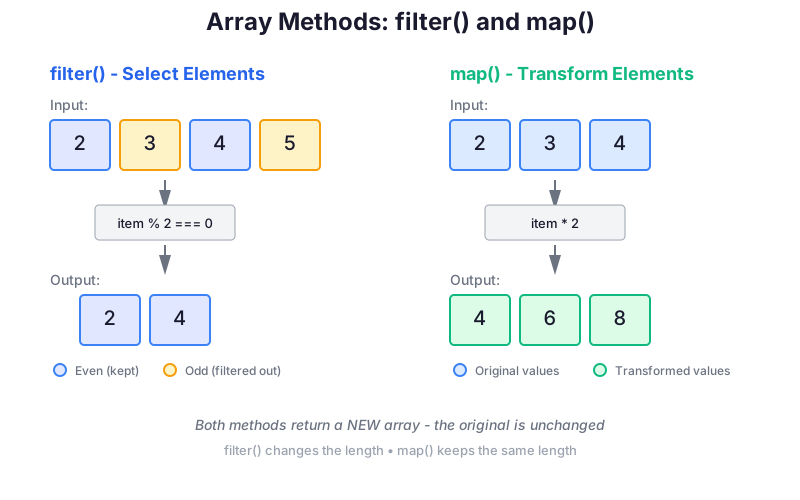
Task from class: return all the movies published in 2010 or later.
const recentMovies = movies.filter((item) => item.year >= 2010);

console.log(recentMovies);          // [{ title: "Inception", ... }]
console.log(recentMovies.length);   // 1
The callback answers a yes/no question about one movie, and filter collects the ones that answered yes. The result is always an array, possibly with one element, possibly empty.
The condition does not have to be a comparison. Any truthy value counts:
console.log(movies.filter((item) => item.award));
// [{ title: "Inception", ..., award: true }]
"Up" has no award property at all, so item.award is undefined, which is falsy, so it is dropped. Inception has award: true, which is truthy, so it stays. This is the falsy list from Practice 1 (false, 0, "", null, undefined, NaN) doing real work.
When only one object has the property
This was asked in class, and it is worth a proper answer: what happens if you add award: true to one movie and the others do not have it at all?
const movies = [
  { title: "Inception", year: 2010, rating: 8.8, award: true },
  { title: "Up", year: 2009, rating: 8.3 }
];
Two objects in the same array, with different shapes. That is completely legal. Unlike a C struct or a database table, an array does not impose a shape on its elements: each object carries its own set of keys, and JavaScript never compares them. Nothing is checked, nothing is filled in, and no warning appears.
So the second object is not ignored. It is a normal element that takes part in every method. What is missing is only the property, and reading a missing property gives undefined:
console.log(movies[0].award);   // true
console.log(movies[1].award);   // undefined   - not an error, not null, not false
From there, each method does its own thing with that undefined:
console.log(movies.map((item) => item.award));
// [true, undefined]        - both elements are still there, one has no value

console.log(movies.filter((item) => item.award).length);
// 1                        - undefined is falsy, so Up is left out

console.log(movies.some((item) => item.award));    // true    - Inception passes
console.log(movies.every((item) => item.award));   // false   - Up does not
Note the difference between the first and the second line. filter drops the element, so the result really is shorter. map keeps every element and just produces undefined for the one without the property. map never shortens an array, whatever the callback returns.
Asking whether the property exists
When “not awarded” and “we do not know” have to be told apart, compare explicitly instead of relying on truthiness:
// Does the property exist at all?
console.log(movies[1].award === undefined);   // true
console.log("award" in movies[1]);            // false   - the `in` operator checks the key

// Is it really the value true?
console.log(movies.filter((item) => item.award === true).length);   // 1
item.award === undefined asks “is the value missing”, "award" in item asks “is the key there”. They differ only in the odd case of a key that exists with the value undefined, which you should not create on purpose.
To supply a default instead of checking, ?? (the nullish coalescing operator) gives the right-hand value when the left side is null or undefined:
console.log(movies.map((item) => item.award ?? false)); // [true, false]4. find - one element instead of an array
Task from class: get the movie whose title is “Up”.
You could do it with filter, but then you get an array with one element in it and have to write [0] afterwards. find returns the element itself:
const upMovie = movies.find((item) => item.title === "Up");

console.log(upMovie);         // { title: "Up", year: 2009, ... }
console.log(upMovie.title);   // "Up"
The callback is exactly the same shape as filter’s. Only the return value differs:
| callback returns | method returns | when nothing matches | |
|---|---|---|---|
filter | true / false | an array of all matches | [] (empty array) |
find | true / false | the first matching element | undefined |
find also stops at the first match instead of walking the whole array, which matters when the array is large.
Comparing text safely
In class we wrote the comparison like this:
const upMovie = movies.find((item) => item.title.toLowerCase() === "UP".toLowerCase());=== on strings is case sensitive: "Up" === "UP" is false. Lowercasing both sides removes the question. toLowerCase() is a string method; it returns a new string and leaves the original alone, just like the array methods that return new arrays.
5. some and every
Task from class: decide whether all the ratings are above 8.
Both methods take the same kind of callback as filter, and both give back a single boolean:
someasks: is there at least one element for which the callback is true?everyasks: is the callback true for all elements?
movies[0].rating = 7.5;   // Inception drops below 8

const isEveryRatingAbove8 = movies.every((item) => item.rating > 8);
console.log(isEveryRatingAbove8);   // false   - Inception is 7.5

const atLeastOneAbove8 = movies.some((item) => item.rating > 8);
console.log(atLeastOneAbove8);      // true    - Up is 8.3
On plain numbers, to see the shapes side by side:
const numbers = [4, 9, 12];

console.log(numbers.some((n) => n > 10));    // true    - 12 is
console.log(numbers.every((n) => n > 10));   // false   - 4 and 9 are not
Like find, both stop early: some stops at the first true, every at the first false.
The callback must describe the condition explicitly. A remainder is a number, and JavaScript would interpret it through truthy/falsy rules:
const values = [2, 4, 8];

console.log(values.every((value) => value % 2 === 0)); // true
console.log(values.every((value) => value % 2));       // false - 0 is falsy
Write the comparison. value % 2 === 0 says “even”; value % 2 merely produces a remainder.
6. Math.min, Math.max, and spreading
Math.min and Math.max return the smallest and largest of the numbers you give them:
console.log(Math.min(1, 2));      // 1
console.log(Math.max(1, 2, 3));   // 3
Note the words: the numbers you give them, as separate arguments. An array is not a number:
console.log(Math.max([3, 8, 2])); // NaNThe spread operator solves this. Last week we used ... inside square brackets to merge arrays:
const arrayA = [1, 2, 3];
const arrayB = [4, 5, 6];

const merged = [-1, ...arrayA, 10, ...arrayB];

console.log(merged);   // [-1, 1, 2, 3, 10, 4, 5, 6]
console.log(arrayA);   // [1, 2, 3]   - untouched
The same three dots work inside the parentheses of a function call, where they turn one array into separate arguments:
const values = [3, 8, 2];

console.log(Math.max(...values));   // 8   - identical to Math.max(3, 8, 2)
Put together, that is how you get the highest rating out of an array of objects:
const ratings = movies.map((item) => item.rating);   // [7.5, 8.3, 8.5]

console.log(Math.max(...ratings));   // 8.5
map to turn objects into numbers, spread to turn the array into arguments. Two steps you already know, combined.
7. reduce - many values into one
map gives back an array of the same length. filter gives back a shorter array. Sometimes you want one single value: a sum, an average, a maximum, a count.
You already know how to do that with a loop:
const data = [1, 2, 3];

let total = 0;
for (const element of data) {
  total += element;
}

console.log("Sum: " + total);   // Sum: 6
Three parts: a starting value, a walk over the array, and one line that combines “what I have so far” with “the current element”. reduce is exactly those three parts, written as one expression:
const totalWithReduce = data.reduce((total, item) => total + item, 0);

console.log(totalWithReduce); // 6- the callback takes two parameters: the value accumulated so far, and the current element
- whatever the callback returns becomes the accumulated value for the next step
- the second argument of
reduce(here0) is the starting value
Step by step, for [1, 2, 3]:
| step | accumulator so far | current item | callback returns |
|---|---|---|---|
| start | 0 | - | - |
| 1 | 0 | 1 | 1 |
| 2 | 1 | 2 | 3 |
| 3 | 3 | 3 | 6 |
The result is 6, the last value the callback returned.
Once the array holds objects, the pattern does not change, you just reach into the element:
const totalRating = movies.reduce((total, movie) => total + movie.rating, 0);The accumulator does not have to be a sum. It can keep a largest value:
const temperatures = [18, 23, 17, 26];

const highest = temperatures.reduce(
  (highestSoFar, temperature) =>
    temperature > highestSoFar ? temperature : highestSoFar,
  -Infinity,
);

console.log(highest); // 26
Or it can count only the elements that pass a condition:
const longTitles = movies.reduce(
  (count, movie) => count + (movie.title.length >= 8 ? 1 : 0),
  0,
);
The ternary contributes 1 for a match and 0 otherwise. In every version, ask the same question: “What does the accumulator mean after this step?”
8. Matrices and flat()
There is no separate 2D array type in JavaScript. A matrix is just an array whose elements are arrays:
const matrix = [
  [1, 2, 3],
  [4, 5, 6],
  [7, 8, 9]
];

console.log(matrix[0][1]);   // 2   - row 0, column 1
console.log(matrix.length);  // 3   - number of rows
console.log(matrix[0].length); // 3 - length of the first row
Read matrix[0][1] as two steps: matrix[0] is the array [1, 2, 3], and [1] takes the element at index 1 of that.
Unlike in C, the rows are independent arrays and do not have to be the same length. [[1, 2], [3], [4, 5, 6]] is a perfectly ordinary array of arrays.
flat() removes one level of nesting:
console.log(matrix.flat()); // [1, 2, 3, 4, 5, 6, 7, 8, 9]That is useful because every method from this article works on a flat array of numbers, but none of them look inside nested arrays for you:
console.log(Math.max(...matrix.flat())); // 9There are two useful ways to ask a yes/no question about every cell. You can flatten first:
const allBelowTen = matrix.flat().every((value) => value < 10);Or apply the method once to the rows and once to the values:
const allBelowTen = matrix.every(
  (row) => row.every((value) => value < 10),
);
The same nesting works with some:
const hasMultipleOfSeven = matrix.some(
  (row) => row.some((value) => value % 7 === 0),
);
Sometimes “all are valid” is easiest to express as “there is no invalid value”:
const allNonNegative = !matrix
  .flat()
  .some((value) => value < 0);
Read the ! last: first ask whether any negative value exists, then negate that answer.
9. The DOM
Everything up to this point printed to the Console. The page itself never changed. That changes now.
When the browser loads your HTML, it does not keep it as text. It parses it into a tree of objects, one object per element, and renders that tree. This tree is the DOM: the Document Object Model.
document
└── html
    ├── head
    └── body
        ├── h1        "Some text"
        ├── p.paragraph        "First paragraph"
        ├── p.paragraph#second "Second paragraph"
        └── img
Two consequences:
- Those objects are reachable from JavaScript, through the global
document. - Changing one of them changes what you see, immediately. No reload.
document is the JavaScript entry point for the page. The root element of the DOM tree is the <html> element, available as document.documentElement. The <body> element is available directly as document.body.
The HTML file is only the starting state. From the moment the page loads, the DOM is the truth.
The page we worked on
<!DOCTYPE html>
<html lang="en">
<head>
  <meta charset="UTF-8">
  <meta name="viewport" content="width=device-width, initial-scale=1.0">
  <title>Document</title>
  <link rel="stylesheet" href="style.css">
</head>
<body>
  <h1>Some <u>text</u></h1>
  <p class="paragraph">First paragraph</p>
  <p class="paragraph" id="second">Second paragraph</p>

  <img src="" alt="image" />

  <script src="script.js"></script>
</body>
</html>h1 {
color: red;
}
#second {
color: green;
}
.paragraph {
font-size: 20px;
}The <script> tag moved, and that is the point
In Practice 1 the script tag sat in the <head>, and the article promised this would break as soon as we touched the page. Compare:
<!-- Practice 1: in the head. Fine while we only used console.log -->
<head>
  <script src="script.js"></script>
</head>

<!-- Practice 2: last line of the body -->
<body>
  <h1>Some text</h1>
  <script src="script.js"></script>
</body>
The browser reads the HTML from top to bottom and runs a script the moment it reaches it. A script in the <head> therefore runs before the <h1> exists. Asking for an element that does not exist yet does not throw; it quietly gives you null, and the error only appears on the next line:
const h1 = document.querySelector("h1");   // null, because the body is not parsed yet
h1.innerText = "Another text";
// TypeError: Cannot set properties of null (setting 'innerText')
Putting the tag at the end of <body> guarantees every element above it already exists.
10. Selecting elements
querySelector - the first match
const h1 = document.querySelector("h1");        // by tag name
const second = document.querySelector("#second"); // by id
const first = document.querySelector(".paragraph"); // by class

console.log(h1);   // <h1>Some <u>text</u></h1>
The argument is a CSS selector, the exact same string you would write in the stylesheet:
| Selector | Matches |
|---|---|
"h1" | the first <h1> element |
"#second" | the element with id="second" |
".paragraph" | the first element with class="paragraph" |
"p.paragraph" | the first <p> that has that class |
"ul li" | the first <li> inside a <ul> |
"ul > li" | the first <li> that is a direct child of a <ul> |
"[data-kind]" | the first element with a data-kind attribute |
'input[type="number"]' | the first number input |
Everything you learned about selectors in CSS transfers here unchanged. If nothing matches, you get null.
The space and > are not interchangeable:
"section p"matches a paragraph anywhere inside a section;"section > p"matches only a paragraph whose immediate parent is the section.
One element can have several valid selectors. For <button id="save" class="primary">, "button", "#save", ".primary" and "button.primary" can all select it. Choose the selector that expresses the relationship your code relies on.
querySelectorAll - all matches
const pElements = document.querySelectorAll("p");   // or ".paragraph"

console.log(pElements);          // NodeList(2) [p.paragraph, p.paragraph#second]
console.log(pElements.length);   // 2
What comes back is a NodeList, not an array. It has .length and you can walk it with for...of:
for (const p of pElements) {
  p.innerText = "Other text";
}
But it is not an array, so most array methods are missing:
pElements.map((p) => p.innerText);
// TypeError: pElements.map is not a function
Convert it when you need them:
const pArray = Array.from(pElements);   // or: const pArray = [...pElements];

console.log(pArray);   // [p.paragraph, p.paragraph#second]   - a real array

const texts = pArray.map((p) => p.innerText);The older methods
These two also came up, and you will meet them constantly in older code and in tutorials:
console.log(document.getElementById("second"));            // one element, or null
console.log(document.getElementsByClassName("paragraph")); // HTMLCollection(2)
getElementById("second") is the same as querySelector("#second"), except that the id is passed without the #, because the method only ever looks for ids. Mixing that up is a classic: getElementById("#second") returns null.
Prefer querySelector / querySelectorAll: one syntax to remember instead of four method names, and the selector can be as specific as you like.
11. Reading and writing content
Three properties do almost the same thing, and the difference matters:
const h1 = document.querySelector("h1");   // <h1>Some <u>text</u></h1>

console.log(h1.innerHTML);     // "Some <u>text</u>"   - the markup inside
console.log(h1.innerText);     // "Some text"          - the text as rendered
console.log(h1.textContent); // "Some text" - all text nodes, raw| Property | Gives you | Use it when |
|---|---|---|
innerHTML | the HTML markup inside the element, as a string | you want to read or write real HTML |
innerText | the text as the user sees it | you want plain text |
textContent | every text node, including hidden ones | you want plain text and speed |
innerText and textContent differ on hidden content: innerText skips what CSS hides (display: none), because it reports what is actually rendered; textContent returns it anyway. On a simple page they print the same thing, which is why they looked identical in class.
Writing
All three are read and write:
h1.innerText = "Another text";
// The page now shows: Another text

h1.innerHTML = "<u>Another</u> text";
// The page now shows: Another text, with "Another" underlined
The difference is what happens to the tags:
h1.innerText = "<u>Another</u> text";
// The page literally shows: <u>Another</u> text
innerText treats your string as text, so < and > end up on screen as characters. innerHTML parses your string as HTML, so the tags become elements.
Anything you assign becomes a string
let total = 1 + 3;

h1.innerText = total;          // the page shows: 4
console.log(typeof h1.innerText);   // "string"
You put in a number, you get back a string. This is the reason that next week, when we start reading a counter back off the page, every read will be wrapped in Number(...).
12. Changing styles and attributes
.style
Every element has a .style property that writes inline CSS on that one element:
const secondP = document.querySelector("#second");

secondP.style.color = "blue";
secondP.style.backgroundColor = "yellow";
That produces exactly this in the DOM:
<p class="paragraph" id="second" style="color: blue; background-color: yellow;">Two rules to take away.
Hyphens become camelCase. A CSS property name with a hyphen is not a valid JavaScript property name, so it loses the hyphen and capitalizes the next letter:
| CSS | JavaScript |
|---|---|
color | style.color |
background-color | style.backgroundColor |
font-size | style.fontSize |
border-radius | style.borderRadius |
Values are strings, with units. element.style.fontSize = 20 does nothing at all; it has to be "20px".
Attributes
Attributes from the HTML are properties on the element object, so you set them the same way:
const img = document.querySelector("img");

img.src = "https://blog.scottlogic.com/jsteer/assets/binarytrees/html.png";
img.alt = "A diagram of an HTML tree";
The page shows the new image at once. Same for a.href, input.value, button.disabled, and the rest.
HTML attribute names and DOM property names are usually similar, but multi-word properties use JavaScript camelCase:
<input id="nickname" maxlength="12" value="Ada">
<button id="save">Save</button>const nickname = document.querySelector("#nickname");
const saveButton = document.querySelector("#save");
console.log(nickname.value); // "Ada"
console.log(nickname.maxLength); // 12
saveButton.disabled = true;disabled is a property of the button itself. saveButton.style.disabled would be meaningless because disabled is not a CSS property. By contrast, a visual property belongs under .style, for example saveButton.style.backgroundColor.
Summary
Objects
{ key: value }stores values by name;movie.titleormovie["title"]- brackets are needed for keys that are not valid identifiers, and for keys held in variables
- assigning to a new key creates it; reading a missing key gives
undefined constprotects the variable, not the contents
Arrays of objects
- the array methods are unchanged; the callback simply receives an object
filtergives an array of matches,findgives the first match orundefinedsome: at least one passes.every: all pass. Both give a booleanreduce(callback, startValue)collapses an array into one value; always pass the start valueMath.max(...numbers)- spread turns an array into separate arguments- a matrix is an array of arrays;
flat()unpacks one level, or methods can be nested row by row
The DOM
- the browser parses HTML into a tree of objects;
documentis the way in document.documentElementis the root<html>element;document.bodyis the page body- a
<script>runs where it stands, so put it at the end of<body>or usedefer querySelector(cssSelector)gives the first match ornullquerySelectorAll(cssSelector)gives a NodeList:for...ofworks,mapdoes not; convert withArray.from()or[...list]getElementById/getElementsByClassNameare the older equivalents (no#, no.)
Changing the page
innerTextfor plain text,innerHTMLfor markup,textContentfor raw text- everything you assign to them becomes a string
element.style.backgroundColor = "yellow"- camelCase names, string values with units- attributes are element properties:
img.src,input.value,input.maxLength,button.disabled
Extra: seven more array methods
These did not come up in class, but they are the ones you will reach for next, and three of them contain the single most common array bug in JavaScript. All examples are tiny on purpose; run them in the Console.
findIndex - where is it?
find gives you the element. findIndex gives you its position, or -1 if there is none:
const numbers = [10, 20, 30, 40];

console.log(numbers.findIndex((n) => n > 25));    // 2    - 30 sits at index 2
console.log(numbers.findIndex((n) => n > 100));   // -1   - no such element
Use it when you need the position itself, typically to change or remove that element:
const index = movies.findIndex((movie) => movie.title === "Up");

if (index !== -1) {
  movies[index].rating = 9;
}forEach - a loop, written as a method
const names = ["Alice", "Bob", "Chloe"];

names.forEach((name) => console.log(name));
// Alice
// Bob
// Chloe
It calls your callback once per element and that is all. The callback can also take the index as a second parameter:
names.forEach((name, index) => console.log(`${index}: ${name}`));
// 0: Alice
// 1: Bob
// 2: Chloe
Like map, the callback can receive the original array as its third parameter. That makes in-place changes possible:
const prices = [5, 8, 12];

prices.forEach((price, index, array) => {
  array[index] = price + 1;
});

console.log(prices); // [6, 9, 13]
This deliberately changes prices. If the goal is a separate transformed array, prefer map:
const increased = prices.map((price) => price + 1);sort - ordering, with one big catch
const numbers = [30, 4, 100];

numbers.sort();
console.log(numbers);   // [100, 30, 4]   (!)
That is not a typo. With no argument, sort converts every element to a string and sorts alphabetically, and "100" comes before "30" the same way "ab" comes before "b".
The fix is a compare function. sort hands it two elements and looks at the sign of the number you return:
- negative:
acomes first - positive:
bcomes first - zero: leave their order alone
For numbers, a - b produces exactly that:
const numbers = [30, 4, 100];

numbers.sort((a, b) => a - b);
console.log(numbers);   // [4, 30, 100]   - ascending

numbers.sort((a, b) => b - a);
console.log(numbers);   // [100, 30, 4]   - descending
Sorting objects works the same way: subtract the field you care about.
const byYear = [...movies].sort((a, b) => a.year - b.year);
const byRatingDesc = [...movies].sort((a, b) => b.rating - a.rating);
For text, subtraction is meaningless ("a" - "b" is NaN). Use localeCompare, which already returns a negative number, zero or a positive number:
const names = ["Zoe", "adam", "Bella"];

console.log([...names].sort());
// ["Bella", "Zoe", "adam"]   (!)   - every capital letter comes before every lowercase one

console.log([...names].sort((a, b) => a.localeCompare(b)));
// ["adam", "Bella", "Zoe"]         - alphabetical the way a human means it
The default sort compares character codes, and in that ordering "Z" (90) is smaller than "a" (97), so "adam" lands at the end. localeCompare sorts the way a dictionary does. It also handles accented letters correctly, and takes an optional language as a second argument when the alphabet is not the English one: a.localeCompare(b, "hu").
slice - copy a part, safely
slice(start, end) returns a new array with the elements from start up to but not including end:
const letters = ["a", "b", "c", "d", "e"];

console.log(letters.slice(1, 3));   // ["b", "c"]
console.log(letters.slice(2));      // ["c", "d", "e"]   - to the end
console.log(letters.slice(-2));     // ["d", "e"]        - the last two
console.log(letters.slice());       // ["a", "b", "c", "d", "e"] - a full copy

console.log(letters);               // unchanged
“Up to but not including the end index” is the same convention as for (let i = start; i < end; i++), so slice(1, 3) gives you 3 - 1 = 2 elements.
Typical use: the top three after a sort.
const top3 = [...movies].sort((a, b) => b.rating - a.rating).slice(0, 3);splice - cut, insert, replace (in place)
splice looks like slice and behaves nothing like it. It modifies the original array, and it returns the elements it removed.
const letters = ["a", "b", "c", "d", "e"];

// splice(startIndex, howManyToDelete, ...itemsToInsert)

const removed = letters.splice(1, 2);
console.log(removed);   // ["b", "c"]   - what came out
console.log(letters);   // ["a", "d", "e"]   - the original changed
Insert without deleting anything (delete count 0):
const letters = ["a", "d"];

letters.splice(1, 0, "b", "c");
console.log(letters);   // ["a", "b", "c", "d"]
Replace, by deleting and inserting at once:
const letters = ["a", "x", "d"];

letters.splice(1, 1, "b", "c");
console.log(letters);   // ["a", "b", "c", "d"]
Combined with findIndex, that is how you remove one specific element:
const index = movies.findIndex((movie) => movie.title === "Up");

if (index !== -1) {
  movies.splice(index, 1);
}reverse - turn it around (in place)
const numbers = [1, 2, 3];

numbers.reverse();
console.log(numbers);   // [3, 2, 1]   - the original is reversed
To keep the original, copy first:
const numbers = [1, 2, 3];
const backwards = [...numbers].reverse();

console.log(backwards);   // [3, 2, 1]
console.log(numbers);     // [1, 2, 3]
join - an array into one string
join(separator) glues the elements together and gives you back a string. The separator goes between them, and nothing is added at the start or the end:
const names = ["Alice", "Bob", "Chloe"];

console.log(names.join(", "));   // "Alice, Bob, Chloe"
console.log(names.join(" - "));  // "Alice - Bob - Chloe"
console.log(names.join(""));     // "AliceBobChloe"   - glued with nothing
console.log(names.join());       // "Alice,Bob,Chloe" - the default separator is a comma
It works on numbers too, because every element is converted to a string on the way:
console.log([1, 2, 3].join(" + ")); // "1 + 2 + 3"The reason it matters here is the DOM. innerHTML expects one string, but your data is an array. map turns each element into a small piece of HTML, and join("") welds the pieces into the single string innerHTML wants:
const names = ["Keyboard", "Monitor"];

const html = names.map((name) => `<li>${name}</li>`).join("");

console.log(html);   // "<li>Keyboard</li><li>Monitor</li>"

document.querySelector("#product-list").innerHTML = html;
map + join("") is the standard way to render a list from an array, and you will write it in almost every remaining practice.
Rendering checklist
When an array should become HTML but the result looks wrong, inspect the pipeline from left to right:
- Use
map, notforEach, because you need an array of returned strings. - Return the markup from the callback.
- Use backticks when the string contains
${...}placeholders. - Join the string array with
join(""), not an HTML tag. - Assign markup to
innerHTML;innerTextdisplays the angle brackets literally.
const products = ["Notebook", "Pencil"];

const html = products
  .map((product) => `<li>${product}</li>`)
  .join("");

document.querySelector("#products").innerHTML = html;
Each step has a different type: array of data → array of strings → one string → rendered elements.
The rule underneath all seven
Array methods fall into two camps, and knowing which is which prevents an entire category of bug:
| Modifies the original | Returns a new array / value |
|---|---|
sort | map |
reverse | filter |
splice | slice |
push, pop, shift, unshift | concat, flat |
join (returns a string), find, findIndex, some, every, reduce (return a value, touch nothing) |
The left column also returns something, which is what makes the bug so easy to write:
const sorted = movies.sort((a, b) => a.year - b.year);
// `sorted` and `movies` are now THE SAME ARRAY, and movies got reordered
The fix is always the same one line: copy with spread first, then sort, reverse or splice the copy.
const sorted = [...movies].sort((a, b) => a.year - b.year);
// movies keeps its original orderTasks
In class / at home: Practice 2 - In-class tasks
Twelve tasks in two files, in the same order as this article. Tasks a to g go into arrays.js and print to the Console: they are arrays of objects, find, some / every, Math.max with spread, reduce, sort and flat. Tasks h and i go into dom.js and change the page with querySelector, innerText, innerHTML and style.
Homework:
- Sporty Friends - array methods - an array of objects with
nullvalues mixed in, checked automatically. - List of hyperlink URLs - a small DOM task: collect the addresses of every link on the page and list them.
Short snippets can be tried without a project at all, on the site’s playground.
Next steps
Next week the page starts reacting to the user:
- Events:
addEventListener, click handlers, and why you pass the function without parentheses - Reading input:
input.value, and converting it back to a number - Building HTML from data: turning an array of objects into a list on the page
Everything in Practice 3 is built on the two halves of this article: objects and array methods on one side, selecting and changing elements on the other.