Attendance
ContentsHideShow
- Introduction
- Project setup
- 1. The supplied data and DOM elements
- 2. A short ternary-operator recap
- 3. Turning one student into HTML
- 4. Rendering the whole application
- 5. Direct event handling: mark everyone present
- 6. The event object and bubbling
- 7. Event delegation: one handler for every checkbox
- 8. Adding a student with a form
- 9. The complete script.js
- 10. Event timing and default actions
- 11. Other DOM operations demonstrated in class
- 12. A reusable delegation helper
- Summary
- Self-check
- Tasks
- Next steps
Introduction
Practice 1 gave us JavaScript values, functions and array methods. Practice 2 added objects and the DOM. This week the two sides finally meet: we keep application data in an array, turn that data into HTML, and react when the user changes the page.
The project is a small attendance register. It can:
- render an array of student objects as a list;
- show how many students are present;
- mark everyone as present with one click;
- update one student’s attendance from a checkbox;
- add a new student through a form.
The important part is the cycle underneath those features:
data in the students array
          ↓
       render()
          ↓
the browser shows the current data
          ↓
    the user does something
          ↓
an event handler changes the array
          ↓
       render() again
The array is the source of truth. We change the objects first and then rebuild the page from them. We never try to use the rendered list as our database.
Project setup
The practice folder contains:
practice-03/
├── README.md
└── starter/
    ├── example.html   # the finished HTML shape, for reference
    ├── index.html     # the page we run
    ├── script.js      # the file we complete
    └── style.css      # the supplied styles
Open example.html with Live Server first. It shows the list we are going to generate. Then open index.html; all of our work goes into script.js.
The relevant part of index.html is:
<h1>Attendance</h1>

<form id="add-form">
  <input id="neptun" placeholder="Neptun code">
  <input id="name" placeholder="Name">
  <button>Add</button>
</form>

<p id="summary"></p>
<button id="all-present" type="button">Everyone is present</button>
<ul id="student-list"></ul>

<script src="script.js"></script>
The script is at the bottom of <body>, after the elements it selects. By the time it runs, the form, paragraph, button and list already exist.
The stylesheet contains one important state class:
li {
  margin: 6px 0;
  padding: 8px;
  background: #eee;
}

li.present {
  background: #cfc;
}
JavaScript decides whether an item has the class present; CSS decides what that class looks like.
1. The supplied data and DOM elements
The starter already contains the data:
const students = [
  { neptun: "ABCDEF", name: "Alice", attendance: false },
  { neptun: "G7H2KL", name: "Bob", attendance: false },
  { neptun: "M9N3PQ", name: "Charlie", attendance: true },
  { neptun: "R4S5TU", name: "David", attendance: false },
  { neptun: "V6W7XY", name: "Eve", attendance: true },
];
This is an array of objects, just like the movie and student examples from Practice 2. Every object has the same three properties:
neptun: the identifier we use to find the student;name: the text displayed to the user;attendance: a boolean that stores the real attendance state.
The starter also selects every permanent element the application needs:
const list = document.querySelector("#student-list");
const summary = document.querySelector("#summary");
const allPresentButton = document.querySelector("#all-present");
const form = document.querySelector("#add-form");
const neptunInput = document.querySelector("#neptun");
const nameInput = document.querySelector("#name");
These elements are permanent: render() changes what is inside the list and summary, but it never replaces the list, form or button themselves.
2. A short ternary-operator recap
Before generating HTML, both groups reviewed the ternary operator. It is a compact expression for choosing between two values:
condition ? valueWhenTrue : valueWhenFalseFor example:
const message = 1 === 1 ? "It's true" : "It's false";
console.log(message); // "It's true"
The equivalent if/else needs a variable and several statements:
let message;

if (1 === 1) {
  message = "It's true";
} else {
  message = "It's false";
}
The ternary is useful inside a template literal because an ${...} placeholder expects an expression that produces a value. We will use it twice: once for a CSS class and once for the checkbox’s checked attribute.
3. Turning one student into HTML
First we declare a function that receives one student object and returns one HTML string:
function studentHtml(student) {
  return `
    <li
      data-neptun="${student.neptun}"
      class="${student.attendance ? "present" : ""}"
    >
      <label>
        <input type="checkbox" ${student.attendance ? "checked" : ""}>
        ${student.name} (${student.neptun})
      </label>
    </li>
  `;
}
For Charlie, whose attendance is true, the returned string represents:
<li data-neptun="M9N3PQ" class="present">
  <label>
    <input type="checkbox" checked>
    Charlie (M9N3PQ)
  </label>
</li>
There are three separate uses of the object:
${student.name}and${student.neptun}display its data;data-neptun="${student.neptun}"stores its identifier on the element;- the two ternaries translate the boolean
attendanceinto HTML.
Conditional class
class="${student.attendance ? "present" : ""}"If the student is present, the result is class="present" and the CSS turns the item green. Otherwise the result is class="", which applies no state class.
Conditional boolean attribute
${student.attendance ? "checked" : ""}HTML boolean attributes work by presence. checked means checked; no checked attribute means unchecked. Writing checked="false" would still count as present and would still check the box.
Custom data-* attribute
<li data-neptun="M9N3PQ">HTML lets us store application-specific information in attributes beginning with data-. JavaScript exposes them through dataset:
const neptun = li.dataset.neptun;data-neptun becomes dataset.neptun. A name such as data-student-id would become dataset.studentId.
4. Rendering the whole application
One student becomes one string. map applies that conversion to every student:
students.map(studentHtml);The result is an array of strings. innerHTML needs one string, so join("") glues the pieces together without adding a separator:
list.innerHTML = students.map(studentHtml).join("");Without join(""), the array would be converted to text using commas, and stray commas would appear between the list items.
The complete render function also calculates the summary:
function render() {
  list.innerHTML = students.map(studentHtml).join("");

  const present = students.filter((student) => student.attendance).length;
  summary.innerText = `${present} of ${students.length} present`;
}
Read the second line from left to right:
filterkeeps the students whoseattendanceis truthy;lengthcounts the filtered array;- the template literal combines that count with the total.
Finally, call the function once:
render();Function declarations only define behavior. Nothing appears until render() actually runs.
5. Direct event handling: mark everyone present
The first interaction has one obvious source: the Everyone is present button. We give that element its own click handler.
function handleAllPresent() {
  students.forEach((student) => {
    student.attendance = true;
  });

  render();
}

allPresentButton.addEventListener("click", handleAllPresent);
The pattern has three steps:
- select the element;
- declare the handler;
- attach the handler with
addEventListener.
forEach calls the callback once for every object. Here we want a side effect—changing each object’s attendance property—so forEach is the right method. It returns undefined; unlike map, it does not build a new array.
After the data changes, render() recreates the checkboxes and summary from the new state.
Pass the function, do not call it
allPresentButton.addEventListener("click", handleAllPresent);handleAllPresent is the function value. The browser stores it and calls it after a click.
allPresentButton.addEventListener("click", handleAllPresent());This would call the function immediately during page load and pass its return value (undefined) to addEventListener.
One group used this wrapper:
allPresentButton.addEventListener("click", () => handleAllPresent());That also works: the arrow function is stored now and calls handleAllPresent() later. The wrapper is unnecessary when no arguments need to be added, so passing handleAllPresent directly is simpler.
6. The event object and bubbling
When the browser calls an event handler, it passes an event object containing information about what happened:
function handleAttendance(event) {
  console.log(event);
}
Two properties matter especially when a handler is attached to a parent:
event.target: the exact element where the event started;event.currentTarget: the element whose handler is currently running.
In a normal function used directly as an event listener, this is also the element handling the event:
list.addEventListener("click", function (event) {
  console.log(event.currentTarget === this); // true
});
An arrow function does not create its own this, so use event.currentTarget when you want code that behaves the same in either function style.
If a checkbox inside #student-list changes:
event.target        → the <input> checkbox
event.currentTarget → the <ul id="student-list">
Those are different elements because events bubble. After an event starts on the checkbox, it travels upward through its ancestors:
input → label → li → ul → body → html → document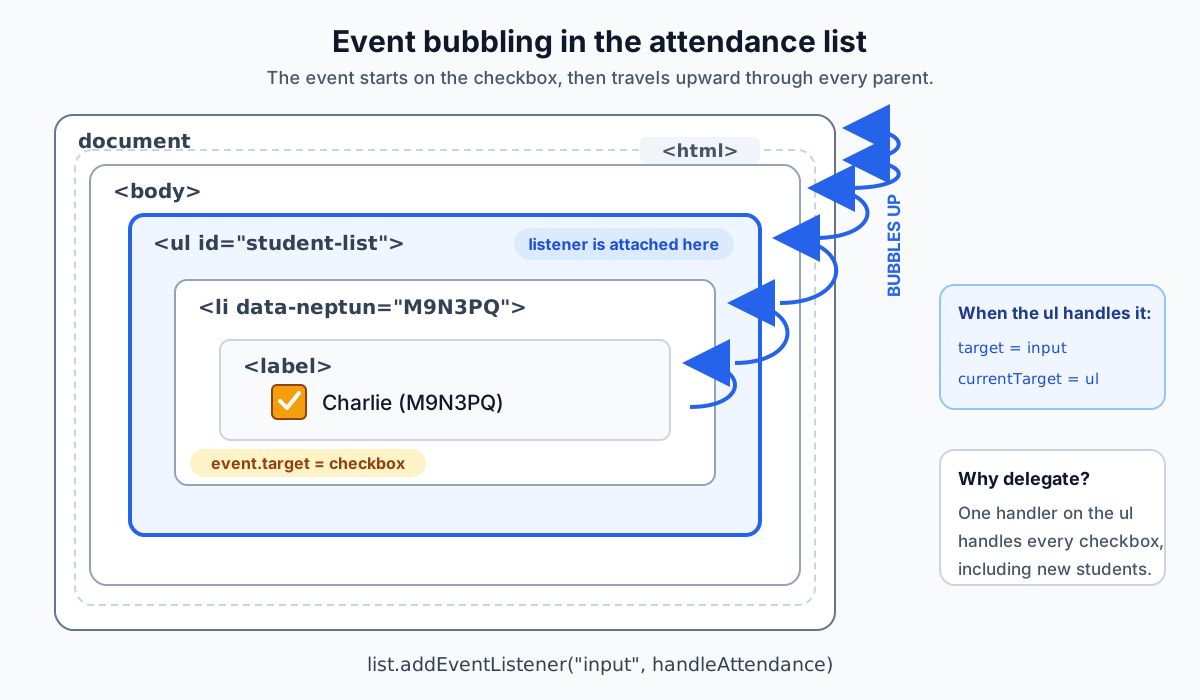
The extra list used during class made the same behavior visible with click handlers on a list item, its parent list, and document. Clicking the item caused all three handlers to run as the event moved upward.
document and its main elements already exist as global objects. You can write document.body, or select the body with document.querySelector("body"). A bare name such as body is not automatically a variable and fails unless your code declared it.
7. Event delegation: one handler for every checkbox
The checkboxes are generated by render(). Every render replaces the old list items with new ones:
list.innerHTML = students.map(studentHtml).join("");Attaching a listener to every checkbox would therefore create two problems:
- we would need many listeners;
- all of them would disappear when
innerHTMLreplaces the checkboxes.
Instead, we attach one input listener to the permanent parent:
list.addEventListener("input", handleAttendance);The checkbox event bubbles to the list. This pattern—one parent handling events from its children—is event delegation.
The delegated handler
function handleAttendance(event) {
  if (!event.target.matches("input")) {
    return;
  }

  const li = event.target.closest("li");
  const neptun = li.dataset.neptun;
  const student = students.find((student) => student.neptun === neptun);

  student.attendance = event.target.checked;
  render();
}
Let us take it apart.
1. Check the event source with matches
if (!event.target.matches("input")) {
  return;
}
The listener belongs to the entire list, so an event could come from different descendants. matches("input") asks whether the source element matches the CSS selector input.
The early return stops the handler when the event did not come from an input.
2. Walk upward with closest
const li = event.target.closest("li");closest("li") starts at the checkbox and walks upward until it finds the nearest matching element. Here that is the student’s list item.
matches tests the element itself. closest searches the element and then its ancestors.
3. Read the identifier from dataset
const neptun = li.dataset.neptun;This reads the data-neptun value written by studentHtml. DOM dataset values are strings, which is exactly what we need because the neptun properties are also strings.
4. Find the real object
const student = students.find((student) => student.neptun === neptun);The clicked DOM element is not the application data. Its Neptun code lets us find the corresponding object in the array.
5. Copy the checkbox state and rerender
student.attendance = event.target.checked;
render();
For a checkbox, checked is a boolean. It is true after checking the box and false after unchecking it. We copy that exact value into the object, then render the application from the changed data.
Why use the input event?
For a checkbox, the input event fires when its value changes. For a text input, it fires after each edit, when the latest text is already available through event.target.value.
The lesson used click for buttons and the bubbling demonstration, input for the generated checkboxes, and submit for the form. The event type should describe the interaction being handled.
8. Adding a student with a form
A form should be handled through its submit event, not only through the button’s click event:
form.addEventListener("submit", handleSubmit);This also handles submitting with Enter while an input is focused.
The browser’s default form action reloads or navigates the page. We do not want that in this JavaScript application, so the handler starts with preventDefault():
function handleSubmit(event) {
  event.preventDefault();

  const neptun = neptunInput.value;
  const name = nameInput.value;

  if (neptun === "" || name === "") {
    return;
  }

  students.push({
    neptun,
    name,
    attendance: false,
  });

  neptunInput.value = "";
  nameInput.value = "";

  render();
}
The steps are:
- stop the browser’s default form submission;
- read the current input values;
- return early if either string is empty;
- push a new student object into the source array;
- clear both controls;
- render the changed data.
Object property shorthand
These variables have the same names as the object properties:
const neptun = neptunInput.value;
const name = nameInput.value;
Therefore this:
const student = {
  neptun,
  name,
  attendance: false,
};
means the same as:
const student = {
  neptun: neptun,
  name: name,
  attendance: false,
};
Shorthand only works when the variable and property names are identical.
Why the new checkbox already works
push changes the array, and render() creates the new <li> and checkbox. We do not attach another listener.
The one listener is still attached to the permanent <ul>. When the new checkbox emits an input event, it bubbles to the same parent and handleAttendance finds the newly added object in students.
That is the second major benefit of delegation: it works for descendants created later.
9. The complete script.js
Here is the clean final application in one place:
const students = [
  { neptun: "ABCDEF", name: "Alice", attendance: false },
  { neptun: "G7H2KL", name: "Bob", attendance: false },
  { neptun: "M9N3PQ", name: "Charlie", attendance: true },
  { neptun: "R4S5TU", name: "David", attendance: false },
  { neptun: "V6W7XY", name: "Eve", attendance: true },
];

const list = document.querySelector("#student-list");
const summary = document.querySelector("#summary");
const allPresentButton = document.querySelector("#all-present");
const form = document.querySelector("#add-form");
const neptunInput = document.querySelector("#neptun");
const nameInput = document.querySelector("#name");

function studentHtml(student) {
  return `
    <li
      data-neptun="${student.neptun}"
      class="${student.attendance ? "present" : ""}"
    >
      <label>
        <input type="checkbox" ${student.attendance ? "checked" : ""}>
        ${student.name} (${student.neptun})
      </label>
    </li>
  `;
}

function render() {
  list.innerHTML = students.map(studentHtml).join("");

  const present = students.filter((student) => student.attendance).length;
  summary.innerText = `${present} of ${students.length} present`;
}

function handleAllPresent() {
  students.forEach((student) => {
    student.attendance = true;
  });

  render();
}

function handleAttendance(event) {
  if (!event.target.matches("input")) {
    return;
  }

  const li = event.target.closest("li");
  const neptun = li.dataset.neptun;
  const student = students.find((student) => student.neptun === neptun);

  student.attendance = event.target.checked;
  render();
}

function handleSubmit(event) {
  event.preventDefault();

  const neptun = neptunInput.value;
  const name = nameInput.value;

  if (neptun === "" || name === "") {
    return;
  }

  students.push({
    neptun,
    name,
    attendance: false,
  });

  neptunInput.value = "";
  nameInput.value = "";
  render();
}

allPresentButton.addEventListener("click", handleAllPresent);
list.addEventListener("input", handleAttendance);
form.addEventListener("submit", handleSubmit);

render();
Notice the order:
- data and permanent DOM selections;
- functions;
- event-listener registrations;
- the first render.
Function declarations are hoisted, so other orders can run, but this one is easy to read from setup to behavior.
10. Event timing and default actions
Events that sound similar can happen at different stages of one user action. Consider a text input:
<input id="message" value="go">const messageInput = document.querySelector("#message");
for (const type of ["keydown", "input", "keyup", "change"]) {
messageInput.addEventListener(type, function (event) {
console.log(type, event.target.value);
});
}If the user types one character at the end, the usual order is:
keydownfires when the key goes down, before the character has been inserted;- the browser performs the edit;
inputfires with the updated value;keyupfires when the key is released, also with the updated value;changefires later, when the edit is committed—normally when the text field loses focus.
Use input for live feedback because it responds to typing, pasting, deleting, and other edits. Keyboard events describe keys, not every possible way a value can change.
More than one listener
addEventListener does not replace an earlier listener. If two handlers are registered on the same element for the same event, both run in registration order:
const statusButton = document.querySelector("#status");

statusButton.addEventListener("click", () => console.log("first"));
statusButton.addEventListener("click", () => console.log("second"));
One click prints first, then second.
Default browser actions
An event and the browser’s default response are separate things. event.preventDefault() cancels the default response when the event is cancelable:
- submitting a form would navigate or reload;
- following a link would navigate to its address;
- clicking a checkbox would change its checked state.
For example, this link still emits a click event, but it does not navigate:
const previewLink = document.querySelector("#preview-link");

previewLink.addEventListener("click", function (event) {
  event.preventDefault();
  console.log("Preview requested");
});
Likewise, preventing the click default on a checkbox prevents its new checked state from being committed:
const lockedCheckbox = document.querySelector("#locked");

lockedCheckbox.addEventListener("click", function (event) {
  event.preventDefault();
});
For a form, listen for submit on the form itself. Clicking its submit button—or pressing Enter in a field—causes the form to emit that event.
Stopping propagation
Most events bubble, which is what delegation needs. Occasionally a nested control must not trigger an ancestor’s handler:
<div id="toolbar">
  <button id="quiet-button">Run quietly</button>
</div>const toolbar = document.querySelector("#toolbar");
const quietButton = document.querySelector("#quiet-button");
toolbar.addEventListener("click", () => {
console.log("toolbar click");
});
quietButton.addEventListener("click", function (event) {
event.stopPropagation();
console.log("button click");
});Clicking the button prints only button click: stopPropagation() prevents the event from continuing to the toolbar. Use it deliberately; stopping events everywhere would also prevent delegation from working.
11. Other DOM operations demonstrated in class
After completing the attendance register, both groups used a second list to try several DOM operations in isolation:
<ul id="some-list">
  <li id="item1">List item 1</li>
  <li>List item 2</li>
</ul>
These examples are not part of the attendance application’s final solution, but they are part of the material demonstrated in class.
innerText and textContent
Practice 2 used innerText and innerHTML. We also read an element’s text with textContent:
const h1 = document.querySelector("h1");
console.log(h1.textContent); // "Attendance"innerHTMLreads or writes markup;innerTextworks with the text as it is visually rendered;textContentreads or writes the raw text content of an element and its descendants.
For ordinary plain-text updates in this course, innerText is usually the clearest choice. For generating elements from strings, use innerHTML.
Working with classes through classList
const item1 = document.querySelector("#item1");

item1.classList.add("present");
item1.classList.remove("present");
item1.classList.toggle("present");

console.log(item1.classList.contains("present"));addadds a class;removeremoves it;toggleremoves it if present and adds it if absent;containsreturns a boolean telling us whether it is present.
The two-argument form of toggle makes the desired result explicit:
const hasProblem = nameInput.value === "";

nameInput.classList.toggle("error", hasProblem);
If the second argument is true, the class is added; if it is false, the class is removed. That is useful when a class should mirror a condition rather than simply flip on every call.
className is the element’s complete class attribute as one string:
item1.classList.add("selected");
console.log(item1.className); // for example: "present selected"
Use classList to change individual classes. Assigning className replaces the whole string and can accidentally remove classes added elsewhere.
classList changes the element already in the DOM. In the attendance list, however, render() recreates every <li>, so its present class must come from student.attendance inside the template.
Changing an inline style
One group also changed a CSS property directly:
item1.style.color = "red";CSS properties containing hyphens use camelCase in JavaScript:
item1.style.backgroundColor = "yellow";For reusable states such as present, a class is preferable because CSS remains responsible for appearance. Direct .style changes are useful for one-off or calculated values.
Creating and appending an element
innerHTML is not the only way to add DOM content. We also created an element object:
const otherList = document.querySelector("#some-list");

const li3 = document.createElement("li");
li3.classList.add("present");
li3.innerText = "List item 3";

otherList.appendChild(li3);
The sequence is:
createElement("li")creates a detached element;- properties and classes configure it;
appendChildinserts it as the last child of the list.
Use map(...).join("") with innerHTML when rendering a complete list from data. Use createElement when building and configuring individual element objects step by step.
Callback parameters
Array methods pass more than the current element to their callback:
students.map((student, index, array) => {
  console.log(student);
  console.log(index);
  console.log(array);
});
The three parameters are:
- the current element;
- its index;
- the original array being processed.
You only declare the parameters you need:
students.map((student) => student.name);
students.map((student, index) => `${index + 1}. ${student.name}`);
The same parameter order is used by methods such as map, filter and forEach.
12. A reusable delegation helper
Our attendance handler writes the delegation steps directly. The same pattern can be packaged into a helper when a page needs it repeatedly:
function delegate(parent, type, selector, handler) {
  parent.addEventListener(type, function (event) {
    const targetElement = event.target.closest(selector);

    if (targetElement !== null && this.contains(targetElement)) {
      handler.call(targetElement, event);
    }
  });
}
The four arguments have separate jobs:
| Argument | Meaning |
|---|---|
parent | the selected DOM element that owns the real listener |
type | the event name, such as "click", "input", or "mouseover" |
selector | the child elements the helper should recognise |
handler | the function to run with the matched child |
closest(selector) finds the relevant child even when the event started on something nested inside it. this.contains(targetElement) keeps the match inside the parent. Inside the helper’s normal listener function, this is the parent.
The last line deliberately changes the meaning of this for the supplied handler:
handler.call(targetElement, event);call invokes the function and sets this to targetElement. Therefore a handler passed to delegate can use:
event.target → the exact deepest element where the event started
this         → the descendant that matched the selector
Use a normal function—not an arrow—when the delegated handler needs that dynamically assigned this.
Calling the helper
Suppose a notification list contains dismiss buttons, including buttons inserted later:
<section id="notifications">
  <article class="notice">
    Saved successfully
    <button class="dismiss"><span>Close</span></button>
  </article>
</section>const notifications = document.querySelector("#notifications");
delegate(notifications, "click", ".dismiss", function (event) {
this.closest(".notice").remove();
});Clicking the nested <span> still finds the .dismiss button. The listener belongs to notifications, while this inside the supplied handler is the matched button.
mouseover is another event that bubbles and can be delegated. For example:
delegate(notifications, "mouseover", ".notice", function () {
  this.classList.add("highlighted");
});
Debugging a delegated call
Check the four inputs separately:
parentmust be a DOM element, not an undeclared name and not a selector string.typemust describe the interaction you expect.selectormust match the descendant you want to handle; it may be a tag, class, compound, or attribute selector.handlermust accept the event parameter if it readsevent, and it must be a normal function if it relies on the helper-boundthis.
Inside the handler, use event.target for the exact source and this for the matched delegated element. They may be the same element, but nested markup often makes them different.
Summary
| Concept | What it does in this project |
|---|---|
| Ternary operator | Chooses the conditional class and checked attribute |
map(...).join("") | Turns the student array into one HTML string |
filter(...).length | Counts present students |
forEach | Changes every student object without creating a new array |
addEventListener | Registers code to run after click, input, or submit |
| Event object | Describes the interaction and its source |
target / currentTarget | Distinguish the source element from the handling element |
keydown / input / keyup / change | Represent different stages of editing a field |
preventDefault | Cancels a browser action without stopping propagation |
stopPropagation | Stops an event from continuing to ancestor elements |
| Bubbling | Carries an event upward through the DOM tree |
| Delegation | Lets one parent listener handle all current and future children |
matches / closest | Test the source and locate its surrounding list item |
dataset | Reads the data-neptun identifier from the DOM |
Checkbox checked | Gives the current boolean state of the checkbox |
classList / className | Manipulate individual classes or read the full class string |
createElement / appendChild | Creates and inserts a DOM element object |
delegate(...) | Reuses the closest-plus-bubbling delegation pattern |
The central rule
Every interaction in the attendance application follows the same direction:
event → change students → render() → updated DOMDo not change the generated list and hope the data follows. Change the data and let render() make the list agree.
Self-check
Try to answer these without running the code:
- What type of value does
students.map(studentHtml)return? - Why is
join("")necessary before assigning toinnerHTML? - Why do we pass
handleAllPresentwithout parentheses? - After changing a checkbox, what are
event.targetandevent.currentTarget? - What is the difference between
matches("li")andclosest("li")? - How does
data-neptunbecome accessible from JavaScript? - Why does a newly added student’s checkbox work without a new listener?
- Why must
preventDefault()run inside the form’s submit handler? - What would happen if we changed an
<li>class but did not change its student object? - When would you choose
createElementoverinnerHTML? - Which text-input events see the value before and after a typed character is inserted?
- How do
preventDefault()andstopPropagation()differ? - In the reusable
delegatehelper, what doevent.targetandthisrefer to? - Why must the helper receive a selected parent element instead of a selector string?
Tasks
In class / at home: Practice 3 - Attendance
Start from the supplied files and rebuild the four features in order: rendering, marking everyone present, delegated checkbox handling, and adding a student. Keep the Console open while working.
Next steps
The important idea is larger than this particular attendance list: application state lives in JavaScript, a render function turns it into a page, and events update that state.
That same pattern scales to filtered lists, shopping carts, games, and the component frameworks used in modern frontend development.